The Best Online SVG Editors in 2026
A practical comparison of the best online SVG editors in 2026: what each tool does well, where they fall short, and when it makes sense to move to a native app like Linearity Curve.
This guide compares the most widely used online SVG editors in 2026: including Boxy SVG, Vectr, Gravit Designer, and SVGator . It covers what each tool handles well, where browser-based editing has limits, and when a native app like Linearity Curve is the better choice for serious vector work.
Sometimes you just need to open an SVG file and change something. Move a path, update a colour, adjust a viewBox. You don't want to install software. You don't want to open a full design application. You just want a browser tab that lets you get it done.
That's the real use case behind the search for an "SVG editor online" — and there are now enough decent browser-based tools to make it genuinely viable for a range of tasks.
But browser-based editing has real limits. The closer your work gets to professional illustration, UI design, or anything that needs precise path control, the more those limits show up. This guide covers both sides: what online SVG editors are actually good for, which ones are worth using, and when it makes sense to move to a native app instead.
What online SVG editors are actually for
Online SVG editors occupy a specific niche. They're not trying to replace Illustrator or Linearity Curve. They exist for situations where you need to work with SVG files quickly, without setup, and often on a machine that isn't your primary workstation.
The most common real-world scenarios:
- Quick edits to existing files — updating a colour, repositioning an element, exporting a slightly different version
- Working on an unfamiliar machine — a borrowed laptop, a work computer without your usual software, a remote session
- Lightweight creation — simple icons, basic shapes, quick diagrams that don't justify opening a full design tool
- Client review and annotation — sharing an SVG with a non-designer who needs to see and comment on it in a browser
- Learning vector basics — browser tools are often a lower-friction entry point for someone new to vector design
If your work fits one of these scenarios, an online editor is a reasonable choice. If you're doing detailed illustration, building a component library, or working with complex multi-layer files, you'll hit the ceiling quickly.
What to look for in an online SVG editor
Not all browser-based SVG tools are built the same way. Some are essentially simplified design apps that happen to run in a browser. Others are purpose-built SVG editors with direct access to the file's XML structure. A few are primarily animation tools that use SVG as their output format.
The things that matter most:
Path editing. Can you move individual anchor points? Add and delete nodes? Adjust Bezier handles? A tool that only lets you move whole shapes around isn't really an SVG editor — it's a canvas tool that exports SVG.
File import and export. You need to be able to bring in an existing SVG and get a clean, usable SVG back out. Some tools import fine but produce bloated or non-standard output that breaks in browsers or other applications.
Layer and group support. SVG files often have nested groups and layers. If the editor flattens everything on import, it's going to be difficult to work with anything more complex than a single icon.
Typography handling. If your SVG includes text, you need the editor to handle it properly — ideally preserving web fonts or converting to outlines correctly.
Performance. Browser-based tools can be slow with complex files. A large SVG with hundreds of paths will stress some tools to the point of being unusable.
The best online SVG editors in 2026
Boxy SVG
Boxy SVG is the closest thing to a proper SVG editor in the browser. It's purpose-built for SVG work rather than being a general design tool that happens to export SVG. The interface exposes the structure of the file directly — you can see and edit the XML, work with the full node tree, and access SVG-specific properties that most other tools abstract away.
It handles complex files better than most alternatives, and the path editing tools are genuinely usable. There's a free browser version and a paid desktop app for Mac, Windows and Linux.
Best for: Developers and designers who need direct SVG control, editing existing complex files, anything where clean output matters.
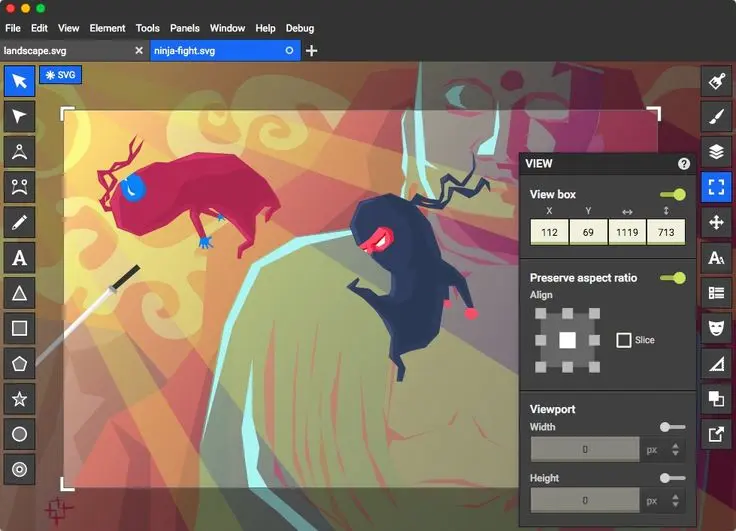
Boxy SVG exposes SVG structure more directly than most browser-based tools.
Vectr
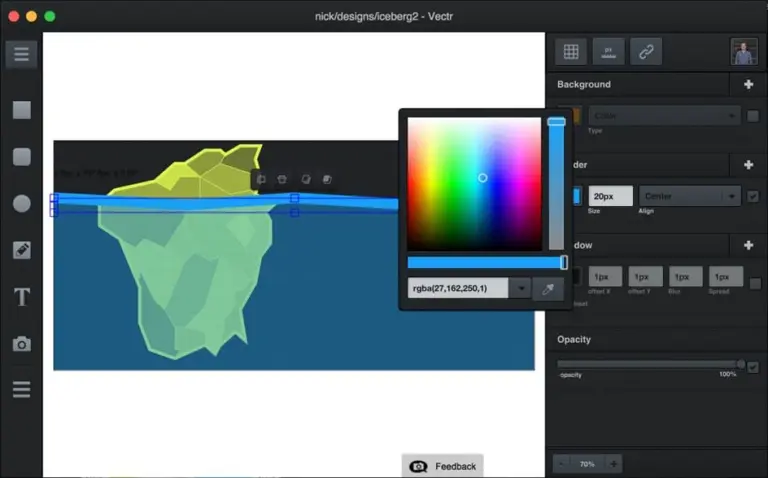
Vectr is a simpler, more beginner-friendly option. The interface is clean and approachable, and it works reasonably well for creating basic vector graphics from scratch — shapes, text, simple icons. It also supports real-time collaboration, which makes it useful for quick back-and-forth with clients or teammates.
The limitations show up fast if you're doing anything complex. Path editing is basic, there's no real Bezier handle control, and it struggles with imported SVG files that have many layers or nested groups. It's genuinely useful for simple work, but it's not a tool for professional illustration.
Best for: Beginners, quick simple illustrations, collaborative review of basic vector files.
Gravit Designer (Corel Vector)
Gravit Designer was one of the most capable browser-based vector tools for several years. It has since been rebranded as Corel Vector and integrated into the Corel ecosystem. The core functionality remains strong — better pen tool, more complete layer support, and more export options than most browser-based alternatives.
The free tier has become more restricted since the Corel acquisition, and the subscription model is a meaningful cost consideration if you're comparing it to free alternatives. For users already in the Corel ecosystem, it makes sense. For everyone else, the value proposition is less clear.
Best for: Users who need more than basic shape creation, already use Corel products.

SVGator
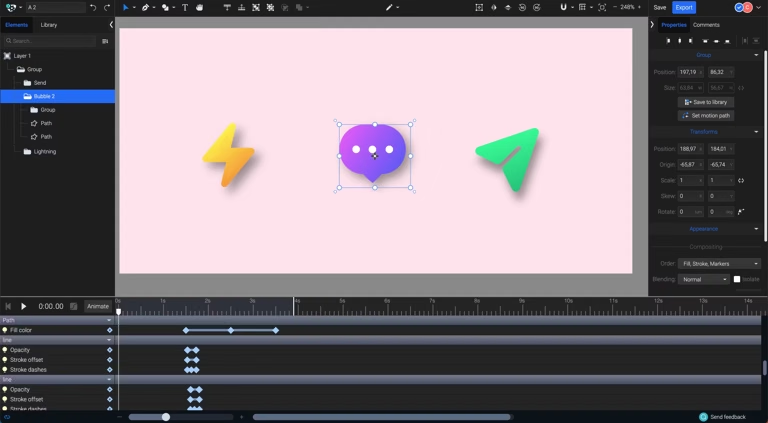
SVGator is a different kind of tool. It's primarily an SVG animation platform — you bring in a static SVG and use a timeline-based interface to add CSS or JavaScript animations. As a static SVG editor it's limited, but as an animation tool for SVG it's one of the better browser-based options.
If you need to animate SVG elements — paths, icons, loaders, illustrations — without writing animation code by hand, SVGator is worth knowing about. The output is clean, well-structured SVG with embedded CSS or JS, and it works well in most browser contexts.
Best for: Adding animation to existing SVG files, creating animated icons and loaders.
Figma
Figma isn't a dedicated SVG editor, but it deserves a mention here because it's where a lot of SVG work actually happens in browser-based workflows. You can import SVG files, edit paths reasonably well, and export back to SVG. The collaboration features are class-leading, and the browser version is essentially identical to the desktop app.
The limitation is that Figma treats SVG as an import/export format rather than as its native file structure. It doesn't expose SVG properties directly, and its SVG export — while generally clean — can produce output with Figma-specific attributes that occasionally cause issues in browser rendering.
Best for: Teams already in Figma, UI-adjacent vector work, collaborative editing.
Feature comparison table
| Tool | Boxy SVG |
|---|---|
| Path editing | Full Bezier control |
| SVG import/export | Clean, standards-compliant |
| Layer support | Full |
| Animation | Basic |
| Free tier | Yes (browser) |
| Best use case | Direct SVG editing |
| Tool | Vectr |
| Path editing | Basic shapes only |
| SVG import/export | Limited on complex files |
| Layer support | Partial |
| Animation | No |
| Free tier | Yes |
| Best use case | Simple creation, beginners |
| Tool | Corel Vector |
| Path editing | Good |
| SVG import/export | Good |
| Layer support | Full |
| Animation | No |
| Free tier | Limited |
| Best use case | Intermediate vector work |
| Tool | SVGator |
| Path editing | Limited |
| SVG import/export | Good |
| Layer support | Partial |
| Animation | Excellent |
| Free tier | Limited |
| Best use case | SVG animation |
| Tool | Figma |
| Path editing | Good |
| SVG import/export | Good (with caveats) |
| Layer support | Full |
| Animation | With plugins |
| Free tier | Yes (free plan) |
| Best use case | UI design, collaboration |
| Tool | Path editing | SVG import/export | Layer support | Animation | Free tier | Best use case |
|---|---|---|---|---|---|---|
| Boxy SVG | Full Bezier control | Clean, standards-compliant | Full | Basic | Yes (browser) | Direct SVG editing |
| Vectr | Basic shapes only | Limited on complex files | Partial | No | Yes | Simple creation, beginners |
| Corel Vector | Good | Good | Full | No | Limited | Intermediate vector work |
| SVGator | Limited | Good | Partial | Excellent | Limited | SVG animation |
| Figma | Good | Good (with caveats) | Full | With plugins | Yes (free plan) | UI design, collaboration |
Where online tools fall short
Browser-based SVG editors have made real progress, but they share a set of limitations that show up reliably once the work gets more demanding.
Performance with complex files. A browser tab running a design application is competing with everything else in the browser for memory and processing. Large SVG files — detailed illustrations, files with hundreds of paths, complex masks or clip paths — will slow down or crash most online tools in ways that desktop apps simply don't.
Bezier precision. Full handle-level Bezier control — the kind you need for clean illustration work — is either absent or feels imprecise in most browser tools. You can move points, but fine-tuning curves to the level a professional illustration requires is genuinely difficult in a browser environment.
Typography. Browser font handling varies across tools, and managing embedded fonts in SVG exports is inconsistent. Converting text to outlines — important for any SVG going into print or a context where font availability isn't guaranteed — is either unavailable or unreliable in several of these tools.
Offline access. Most online SVG editors require an internet connection. For designers who work on trains, planes, or in any context where connectivity isn't guaranteed, this is a real constraint.
File privacy. Uploading client files or confidential work to a browser-based tool means that data is leaving your machine. Depending on your context, this may be a meaningful concern.
When to move to a native app
Online SVG editors make sense for a specific range of tasks. Outside that range, a native app is the better choice — not because of brand preference, but because of what the work actually requires.
Move to a native app when:
- You're working with complex multi-layer SVG files that need to stay structured
- You need precise Bezier curve control for illustration or icon work
- You're building anything that needs to scale consistently across a design system
- Performance matters — large files, fast iteration, no lag
- You work offline regularly
- File privacy is a concern for your project or client
The underlying point is that browser tools optimise for access and convenience. Native apps optimise for precision and performance. The work you're doing determines which one you need.
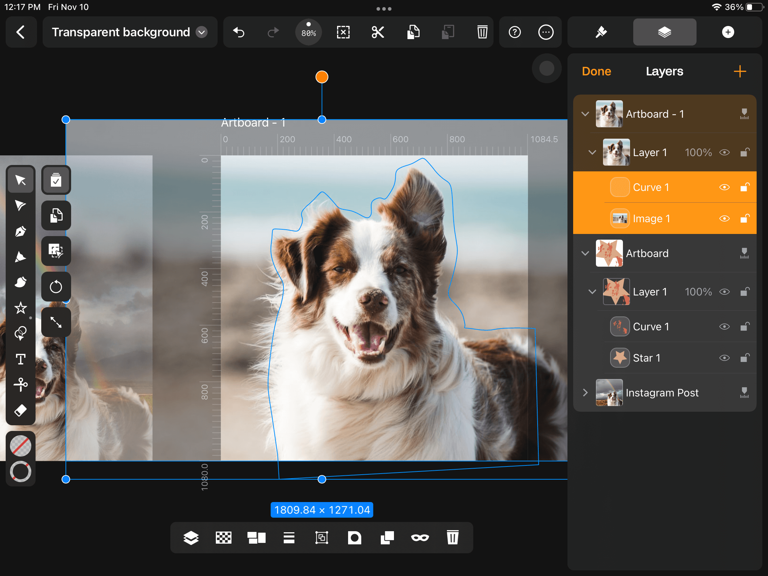
Complex multi-layer files behave differently in a native app environment — more control, more stability, no browser overhead.
Linearity Curve: when you're ready for more
Linearity Curve is a native vector design app for Mac and iPad. It doesn't run in a browser, and that's not a limitation, it's a deliberate choice. The things that make a browser-based SVG editor convenient (instant access, no install) are the same things that create its ceiling. Curve removes that ceiling.
For SVG work specifically, Curve gives you:
- Full Bezier control — anchor points, handles, smooth and corner nodes, all with the precision you'd expect from a professional tool
- Apple Pencil support — on iPad, you can draw and edit paths directly with a stylus, which changes the feel of vector work considerably
- Clean SVG export — Curve's SVG output is standards-compliant and lean, without the tool-specific attributes that some browser exports add
- Auto Trace — convert raster images to editable vector paths, then refine them manually
- Performance — native app performance on Apple Silicon; complex files stay responsive
The natural progression looks like this: you start with an online tool for quick edits and simple tasks. As the work gets more involved — more layers, more precision required, more complex files — you reach for a native app. Curve is where that progression leads for Mac and iPad users.
It's not the right tool for every situation. If you're on Windows or need real-time browser-based collaboration, the tools listed earlier in this guide are still valid. But if you're working on Apple hardware and your SVG work has moved beyond quick edits, Curve is worth the switch.
Learn more about Linearity Curve
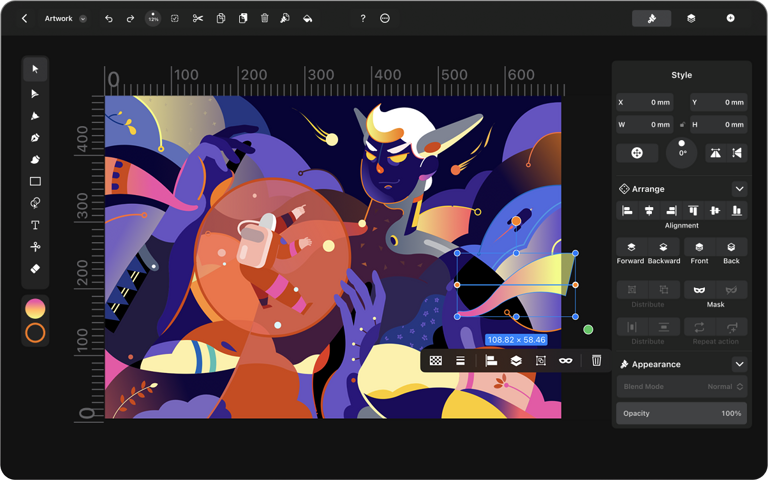
Linearity Curve on iPad — full vector control without a browser.
Quick reference: which tool for which job?
| Situation | Quick colour or position edit to an existing SVG |
|---|---|
| Recommended tool | Boxy SVG |
| Situation | Simple icon or shape creation, no install |
| Recommended tool | Vectr |
| Situation | Animating a static SVG for web |
| Recommended tool | SVGatornn |
| Situation | UI design with SVG assets, team collaboration |
| Recommended tool | Figma |
| Situation | Complex illustration or icon work, Mac/iPad |
| Recommended tool | Linearity Curve |
| Situation | Advanced multi-artboard print/brand work |
| Recommended tool | Adobe Illustrator |
| Situation | Recommended tool |
|---|---|
| Quick colour or position edit to an existing SVG | Boxy SVG |
| Simple icon or shape creation, no install | Vectr |
| Animating a static SVG for web | SVGatornn |
| UI design with SVG assets, team collaboration | Figma |
| Complex illustration or icon work, Mac/iPad | Linearity Curve |
| Advanced multi-artboard print/brand work | Adobe Illustrator |
If you want to understand the broader context — file formats, tools, workflows and fundamentals — the full guide is a good place to start.
Vector Design: A Complete Guide to Tools, Formats and Workflows (2026)
About the author
Nadya Kunze runs Customer Support at Linearity and has 7+ years of experience helping customers in SaaS. When she’s not solving problems, she’s drawing, hiking or baking, and she writes for the blog about Linearity, graphic design and other creative topics.

App of the Day
6.1K ratings
Get Started for free

Design in Curve.
Create sharp, scalable designs with intuitive tools for logos, illustrations, and professional branding.

Animate in Move.
Effortlessly create animations for social media, online ads, and motion graphics.
Trusted and used by leading brands


