Use Case
Technical drawing made easy
Draw precise technical diagrams and schematics on Mac and iPad, no CAD required
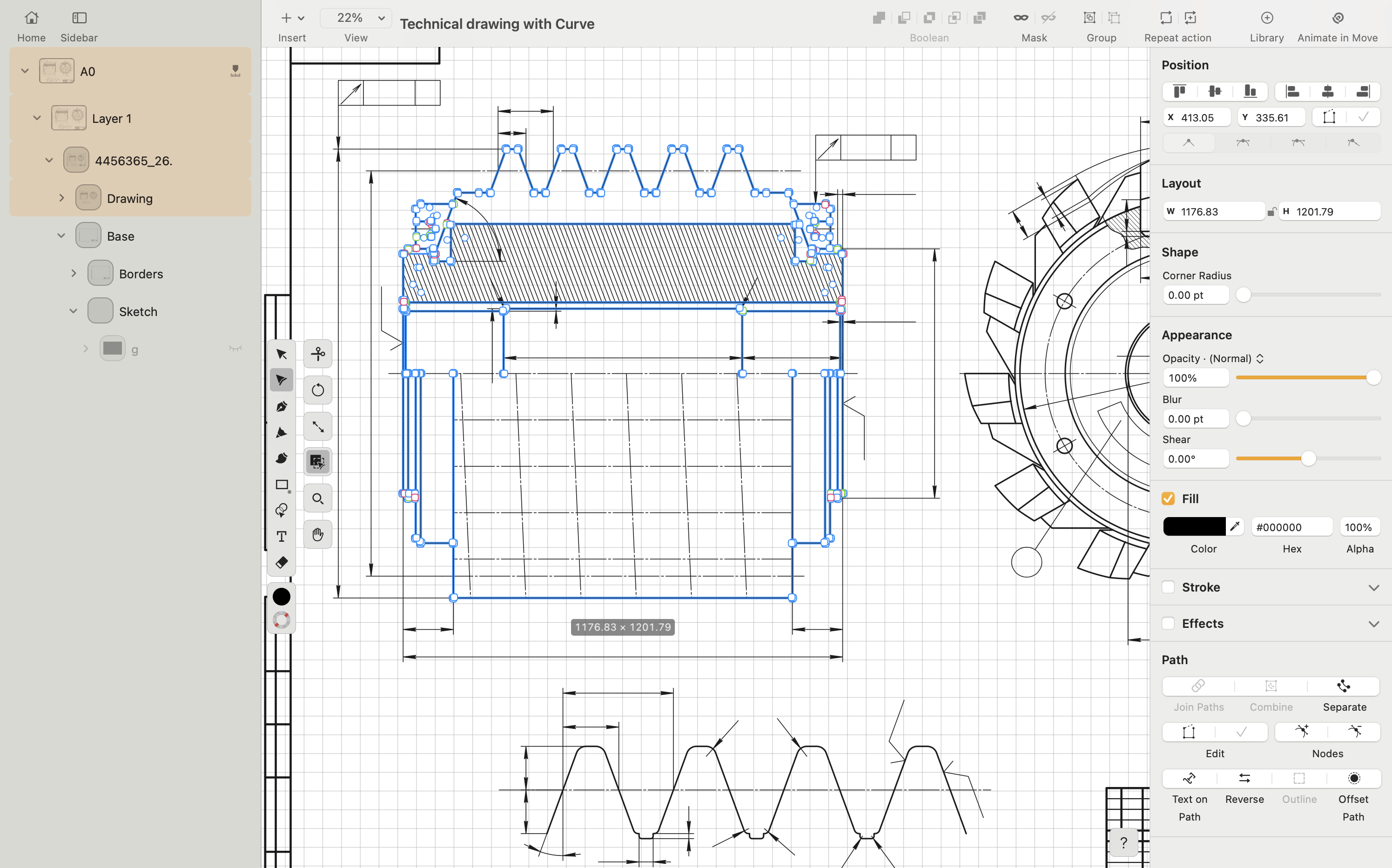
Create clear and accurate technical drawings
Technical drawings need clean lines, clear structure,and reliable accuracy. Many CAD tools are complex, while traditional illustration apps aren’t built for technical layout work.
Linearity Curve gives you a simple way to create technical diagrams, component layouts, product sketches and reference drawings on Mac and iPad with precise shapes, grids, snapping and layers to keep everything aligned and readable.
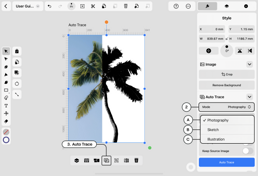
Document ideas, plan concepts, trace references with Auto Trace and export clean vector files for sharing or printing.
- Precision vector shapes and curves
- Grids, guides, and snapping tools
- Import sketches and reference images to trace
- Export to SVG, AI, PDF, PNG, JPEG or TIFF
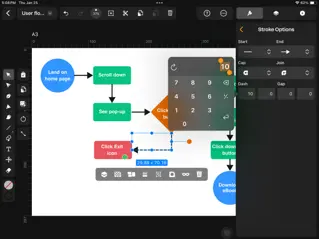
Vector technical drawing for Mac & iPad
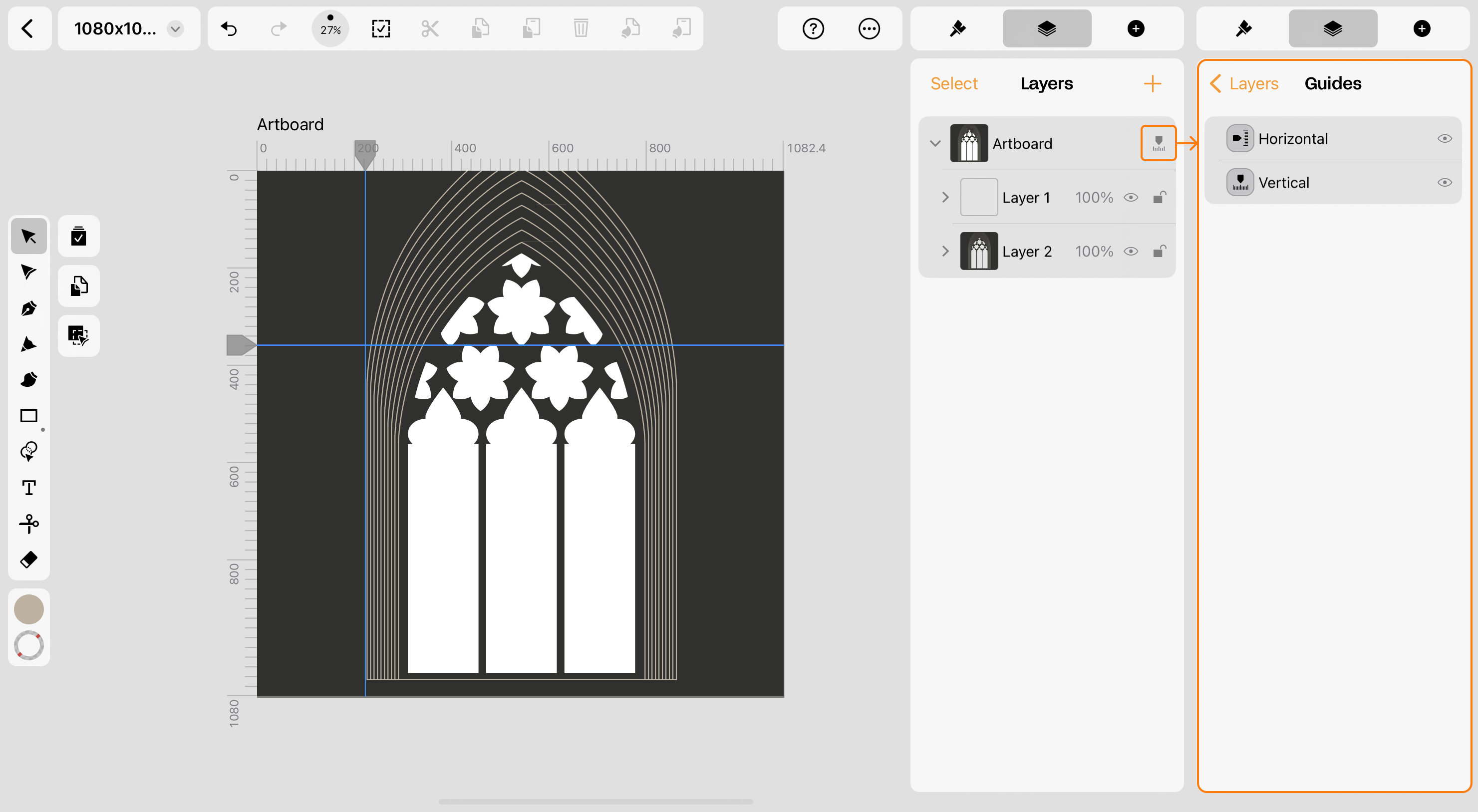
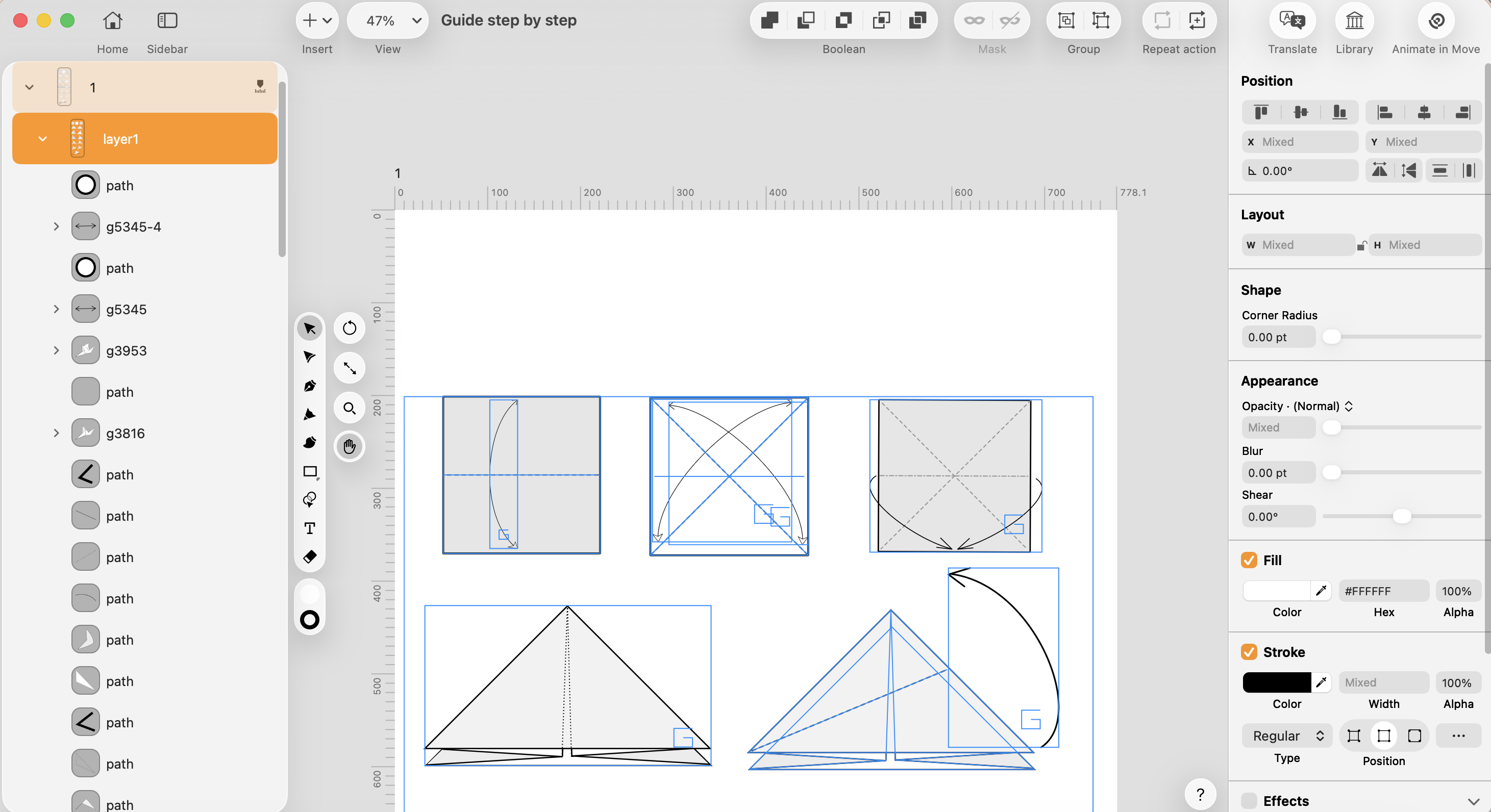

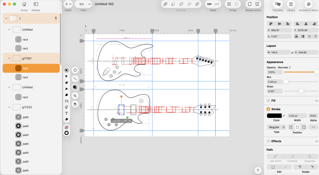
Linearity Curve offers familiar vector tools with precise snapping, guides and grids, making it easier to create clean diagrams, product sketches, and structural layouts without heavy CAD complexity.
Work smoothly on Mac and iPad, stay organized with layers, and keep your workflow efficient from concept to final draft.
Stay focused on the design, not the software
Technical drawing often requires thinking through ideas step-by-step. Linearity Curve keeps the workspace simple and clear, so you can sketch, adjust, label and organize your design without interruption.
Start from a blank canvas, place shapes as needed, and refine as your understanding grows. Add callouts, notes, and layers to keep parts and ideas structured. Curve gives you a clean space to think visually and build a drawing at your own pace.
Built for makers, designers and technical creators
Many technical creators turn to Linearity Curve when they need accuracy without heavyweight engineering software. Linearity gives you a clean, precise space to think visually.
Vector precision without complexity
Alignment tools and editable curves
Organized layers
Learn the tools for technical drawing
New to Linearity Curve or technical sketching? Explore our user guides to get familiar with key tools like snapping, grids, vector editing, and layers. See how to set up a clean drawing, trace references, and build precise shapes step by step.
Step-by-step learning
If you’re new to Linearity Curve, follow this video tutorial by our educator, Aysel.
This lesson takes a practical, hands-on approach, showing you how to create precise technical diagrams and sketches. Follow along as she builds a complete drawing, so you can see how to apply snapping, layers, vector tools, and guides to your own projects.
Learn more in our User Guide

Frequently asked questions
Yes. You can add text, callouts, labels, and organized layers to keep drawings readable and structured.
Yes. You can import photos or scans and trace them with Auto Trace to turn rough ideas into clean diagrams or product concepts.
Curve is not a replacement for full CAD software.
It’s a flexible vector tool for concept sketches, diagrams, and structured drawings where clarity, alignment, and editable vector lines matter without CAD complexity. Many users combine Curve with other design or engineering tools.
Yes. Curve works on Mac and iPad, and many users sketch ideas on iPad (with Apple Pencil) and refine them on desktop for precision. Both versions offer snapping, layers, vectors, and guides.
No. Linearity Curve currently supports AI, SVG, PDF, PNG, JPEG, and TIFF export. If you need DXF or other advanced CAD formats, you may need a dedicated CAD program.
Linearity Curve is ideal for clean, vector-based technical visuals such as product sketches, system diagrams, parts layouts, interface flows, instructional drawings, and more. It’s best suited for early-stage design, visual problem-solving, and documentation, not engineering-grade CAD modeling.
:quality(75))