Super Resolution: how to upscale images with AI in Linearity Curve
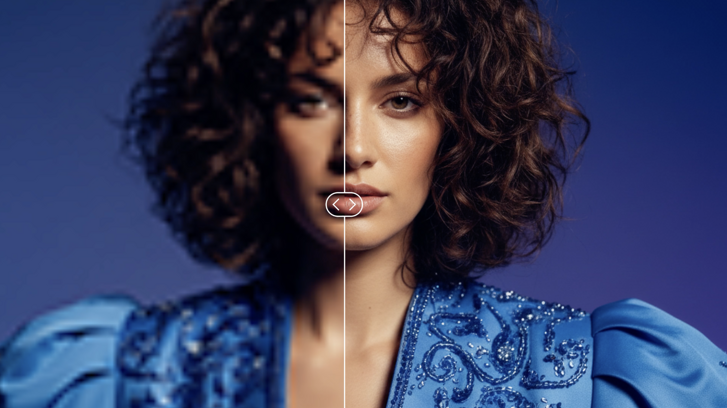
Super resolution is a machine learning technique that increases the resolution of an image beyond its original size, reconstructing fine detail rather than simply stretching pixels. In Linearity Curve, Super Resolution is built directly into the app: select an image, apply it, and the upscaled result is ready in your layer stack in seconds. No exporting, no switching tools, no waiting for a web service to process your file.
This guide covers what super resolution is, how it works in Linearity Curve and when to use it.
What is super resolution?
Super resolution uses machine learning to upscale images, but unlike traditional upscaling, which stretches pixels and creates blur, it uses a trained AI model to predict and reconstruct realistic detail at the higher resolution.
The practical result: an image that was too small or too blurry to use becomes sharp and usable. The defining characteristics of the original, textures, edges, gradients, are preserved and clarified rather than distorted.
This is different from sharpening. Sharpening increases the contrast at edges to create the appearance of sharpness. Super resolution actually increases the pixel density of the image, producing a genuinely higher-resolution file.
How Super Resolution works in Linearity Curve
Super Resolution was introduced in Linearity Curve 6.9. Here's how to use it:
Step 1. Place your image. Import any raster image into Linearity Curve, JPEG, PNG, TIFF, or HEIC. Drag it onto the canvas or use File → Import.
Step 2. Select the image. Tap or click the image on the canvas to select it.
Step 3. Apply Super Resolution. In the Inspector panel on the right, find the image editing section and tap Super Resolution. The AI model processes the image and generates the upscaled version.
Step 4. Continue designing. The upscaled image replaces the original in your layer stack. It works with all other Linearity Curve tools: masks, Background Removal, Magic Eraser, and more, immediately.
That's it. No export, no re-import, no context switching.
When to use Super Resolution
Super resolution isn't needed for every image, it's most valuable in specific situations that come up regularly in design workflows.
The image is slightly too small for the layout. You've found the right image, the subject, the composition, the mood, but at full scale it's not large enough for the artboard. Super Resolution upscales it to fit without the blurriness of manual resizing.
You're reusing older or lower-resolution assets. Brand assets, product photos, and stock images from a few years ago are often lower resolution than modern standards require. Super Resolution brings them up to current quality without a reshoot.
You need a quick quality boost before export. A design that looks fine at small sizes can look soft when exported for print or large-format display. Running Super Resolution before export adds clarity that makes the final output sharper.
You're working with compressed files. JPEG compression reduces image quality each time a file is saved. Super Resolution helps recover detail lost to compression artefacts.
Super Resolution: Linearity Curve vs Photoshop vs Lightroom vs other tools
Super resolution as a feature exists in several tools. Here's how they compare for designers.
Linearity Curve Super Resolution
Built directly into the design app. Select an image in your document, apply Super Resolution, and the upscaled result is in your layer stack immediately. Works on JPEG, PNG, TIFF, and HEIC. Available on Mac and iPad.
Best for: designers who want to upscale an image without leaving their design workflow.
Photoshop Super Resolution
Adobe introduced Super Resolution in Photoshop via Camera Raw in 2021. It produces high-quality results but requires a specific workflow: the image must be opened in Camera Raw, processed there, and then brought into your Photoshop document as a new DNG file. For designers whose primary tool is Photoshop, this is manageable — but it adds steps whenever the image needs upscaling mid-project.
Best for: photographers and designers already working in the Adobe Camera Raw workflow.
Lightroom Super Resolution
Lightroom's Super Resolution is designed specifically for RAW photo files inside a photo management workflow. It's excellent for photographers processing large batches of RAW files — but it's not designed for the design document context. If your workflow is layout, illustration, or marketing asset production rather than photo library management, Lightroom isn't the right tool for this task.
Best for: photographers managing RAW files in Lightroom.
Online image upscalers
Web-based tools like Upscayl, Imglarger, and similar services offer AI upscaling via a browser interface. The quality is often good, but the workflow adds friction every single time: export the image from your design tool, upload it to the web service, wait for processing, download the result, and re-import it. For a one-off task that's manageable. For designers who regularly work with mixed-resolution assets, it becomes a recurring interruption. Linearity Curve's Super Resolution removes that loop entirely.
Best for: one-off upscaling tasks where you don't have dedicated design software.
Canva
Canva has introduced an image upscaling feature for Pro users. Like Linearity Curve, it applies within the design tool. The difference is design capability, Canva is template-driven and raster-based, while Linearity Curve is a full vector design environment with precise path editing, node control, and professional export options including CMYK for print.
Best for: non-designers doing quick template-based work.
| Works inside design document | |
| Linearity Curve | ✓ |
| Photoshop | ✗ (Camera Raw only) |
| Lightroom | ✗ (photo library only) |
| Online tools | ✗ |
| Canva | ✓ (Pro) |
| Supported file types | |
| Linearity Curve | JPEG, PNG, TIFF, HEIC |
| Photoshop | RAW, JPEG, TIFF |
| Lightroom | RAW primarily |
| Online tools | JPEG, PNG |
| Canva | JPEG, PNG |
| Steps to apply | |
| Linearity Curve | 1 |
| Photoshop | 3–4 |
| Lightroom | 2–3 |
| Online tools | 4–5 |
| Canva | 2 |
| Available on iPad | |
| Linearity Curve | ✓ |
| Photoshop | Limited |
| Lightroom | ✓ |
| Online tools | Browser only |
| Canva | ✓ |
| Vector design suite | |
| Linearity Curve | ✓ |
| Photoshop | ✗ |
| Lightroom | ✗ |
| Online tools | ✗ |
| Canva | ✗ |
| Price | |
| Linearity Curve | Free + from $7.99/month |
| Photoshop | From $22.99/month |
| Lightroom | From $9.99/month |
| Online tools | Free / freemium |
| Canva | From $15/month |
| Linearity Curve | Photoshop | Lightroom | Online tools | Canva | |
|---|---|---|---|---|---|
| Works inside design document | ✓ | ✗ (Camera Raw only) | ✗ (photo library only) | ✗ | ✓ (Pro) |
| Supported file types | JPEG, PNG, TIFF, HEIC | RAW, JPEG, TIFF | RAW primarily | JPEG, PNG | JPEG, PNG |
| Steps to apply | 1 | 3–4 | 2–3 | 4–5 | 2 |
| Available on iPad | ✓ | Limited | ✓ | Browser only | ✓ |
| Vector design suite | ✓ | ✗ | ✗ | ✗ | ✗ |
| Price | Free + from $7.99/month | From $22.99/month | From $9.99/month | Free / freemium | From $15/month |
Combine Super Resolution with other AI image tools
Super Resolution is one of several AI-powered image tools in Linearity Curve. They work together in a natural sequence:
Upscale → Remove background → Clean up details → Extract elements
- Super Resolution: upscale a low-resolution product photo to a usable size
- Background Removal: remove the background with one tap
- Magic Eraser: clean up any remaining details or unwanted elements
- AI Grab: extract specific elements from the upscaled image
All four steps happen inside Linearity Curve, without exporting or switching apps between each one.
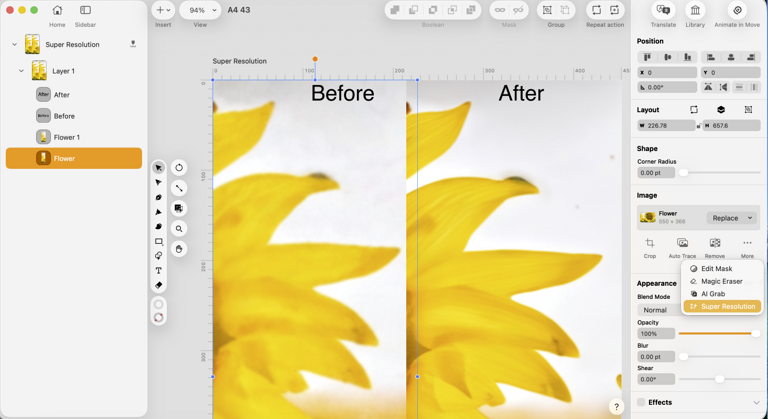
Super Resolution in Linearity Curve is a built-in AI image upscaler that:
- Works on JPEG, PNG, TIFF, and HEIC images
- Applies directly inside your design document — no export required
- Uses machine learning to reconstruct detail rather than just stretching pixels
- Works on Mac and iPad
- Integrates with Background Removal, Magic Eraser, and AI Grab in a single workflow
Available in Linearity Curve 6.9 and later. Download the latest version or update in the App Store.
:quality(75))
:quality(75))
:quality(75))

App of the Day
6.1K ratings
Get Started for free

Design in Curve.
Create sharp, scalable designs with intuitive tools for logos, illustrations, and professional branding.

Animate in Move.
Effortlessly create animations for social media, online ads, and motion graphics.
Trusted and used by leading brands


