Vector Design: a complete guide to tools, formats and workflows (2026)
Master vector design in 2026. Learn SVG, Bezier curves, vector formats and how to create scalable graphics with the best vector tools available.
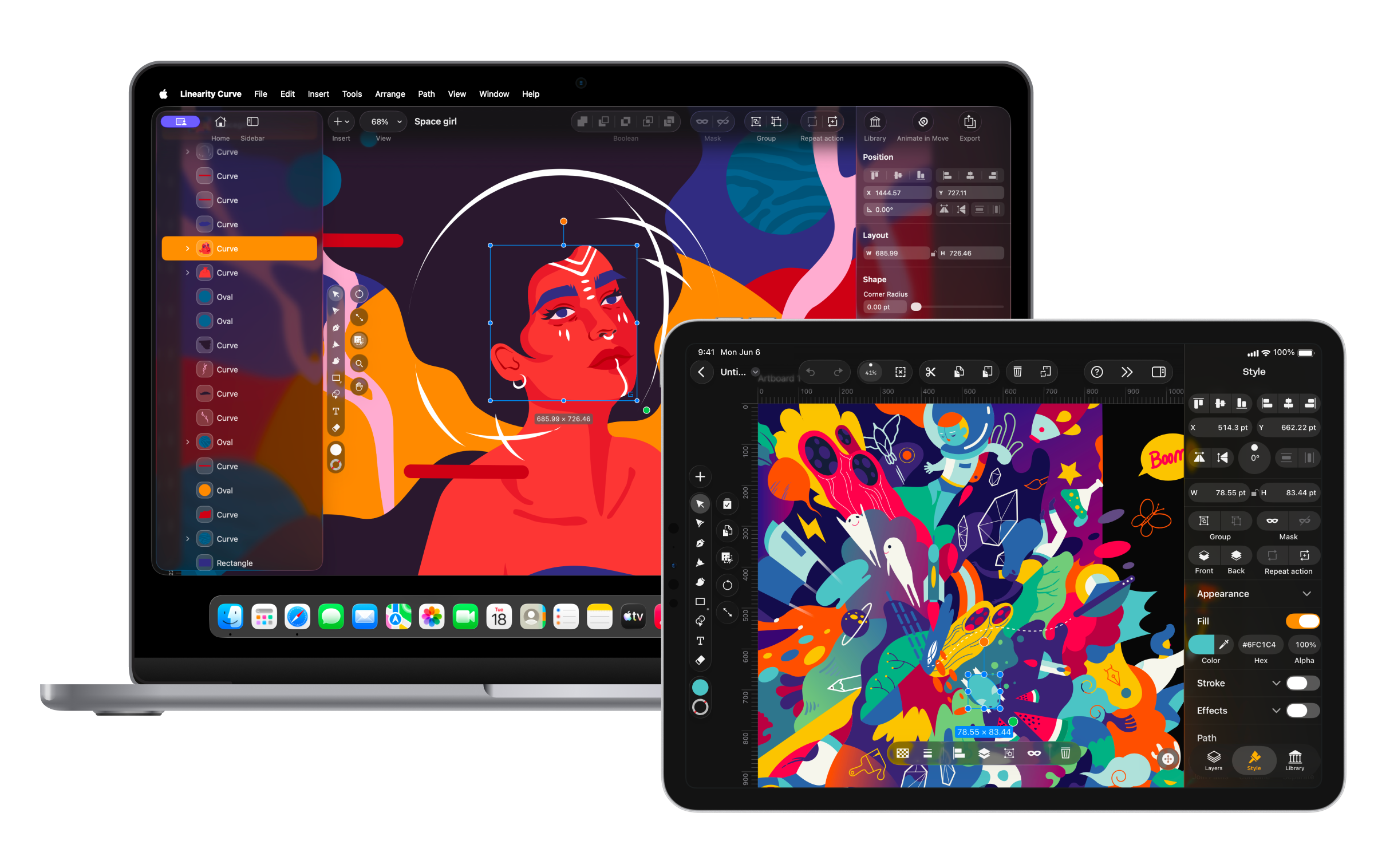
Vector design is the process of creating graphics using mathematical paths rather than pixels, producing images that scale infinitely without quality loss. In 2026, it sits at the core of branding, UI design, web performance and any asset that needs to work across multiple sizes and formats. If you're working in design today, understanding vector design is foundational.
What you'll learn in this guide:
- What vector design is and how it differs from raster graphics
- Vector vs raster in real design workflows
- Bezier curves and precision in vector design
- Vector file formats explained and when to use them
- SVG vs PNG: choosing the right format
- How to vectorize an image
- Best vector software in 2026
- Online SVG editors and the shift to cloud design
- Modern vector design workflow (2026)
- Where AI fits into vector design in 2026
- Common mistakes in vector design
- The future of vector design
What is vector design and how it differs from vector art
Vector design refers to the process of creating graphics using mathematical paths rather than pixels. These paths define shapes, lines, and curves in a way that allows them to be scaled infinitely without losing quality. This makes vector design essential for creating logos, icons, illustrations and any visual that needs to work across multiple sizes and formats.
When people ask what is vector art, they are usually referring to the final visual result. Vector design, on the other hand, is the method and system behind that result. It includes how shapes are constructed, how paths are edited, and how files are prepared for different outputs like web, print, or apps. In other words, vector art is the outcome, while vector design is the process that creates it.
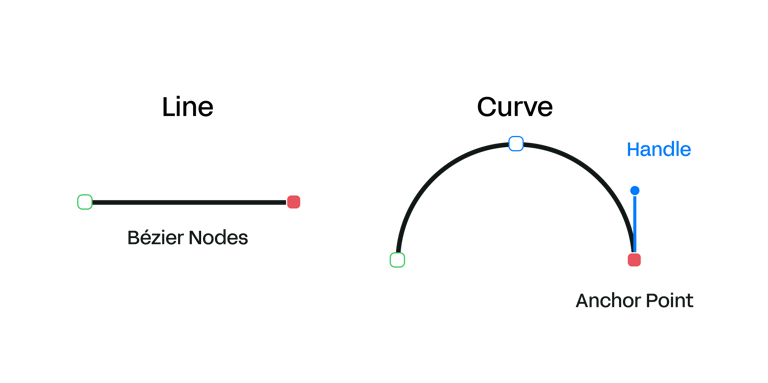
Vector design relies on mathematical descriptions of shapes. Each object is defined by anchor points connected by lines or curves, typically controlled using Bezier curves.
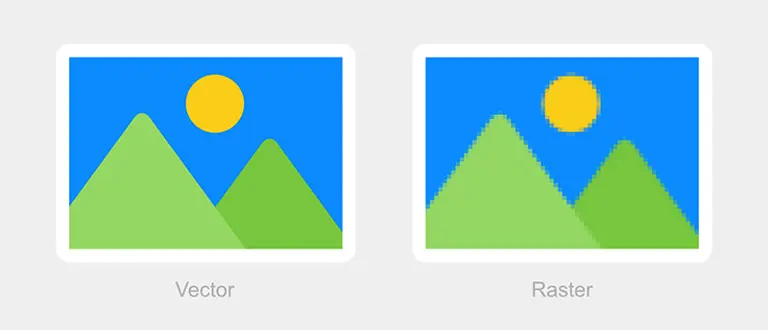
Instead of storing millions of pixels like a raster image, a vector file stores instructions, where points are placed, how curves behave between them, and how shapes are filled or stroked. This means even complex graphics can remain lightweight and easy to edit.
Go deeper: What is vector art? A full breakdown.
Vector vs raster in real design workflows
Vector graphics use mathematical paths and scale infinitely without quality loss. Raster graphics use pixels and degrade when scaled beyond their original resolution. In real workflows, designers use both, the choice depends on the content type, not a preference.
| Feature | Structure |
|---|---|
| Vector design | Paths and curves |
| Raster design | Pixels |
| Feature | Editing |
| Vector design | Fully flexible |
| Raster design | Limited |
| Feature | Scaling |
| Vector design | Infinite |
| Raster design | Degrades |
| Feature | File size |
| Vector design | Generally lighter |
| Raster design | Can be heavy |
| Feature | Use cases |
| Vector design | Logos, UI, icons |
| Raster design | Photos, textures |
| Feature | Vector design | Raster design |
|---|---|---|
| Structure | Paths and curves | Pixels |
| Editing | Fully flexible | Limited |
| Scaling | Infinite | Degrades |
| File size | Generally lighter | Can be heavy |
| Use cases | Logos, UI, icons | Photos, textures |
At a fundamental level, vector design is about structure and control. Every element is built from paths that can be adjusted at any time, which means you're not locked into a fixed resolution. You can resize, reshape or refine your design without worrying about quality loss.
Raster design, on the other hand, is about capturing detail. It's better suited for complex visuals like photography, textures, and realistic shading, where subtle variations in colour and tone are important. That detail comes at a cost: raster images are resolution-dependent. Once created, they can't be scaled up without losing clarity.
In real workflows, designers rarely choose one or the other, they use both. A website might use SVG icons (vector) alongside product photos (raster). A brand identity might combine a vector logo with photographic content. As design systems need to work across devices, vector graphics provide the flexibility and consistency that raster formats can't match.
Choosing between vector and raster also depends on which design tool you're using. If you're evaluating tools, design principles covers how foundational decisions like format choice, colour, and composition fit into a broader design workflow.
Bezier curves and precision in vector design
Bezier curves are the mechanism that gives vector design its precision. They allow designers to define exactly how a path bends between two anchor points using directional handles, producing smooth curves, sharp corners or any shape in between from a minimal set of points.
Precision in vector design comes from mastering Bezier curves. These curves allow designers to control the exact shape of a path using anchor points and directional handles.
Instead of drawing freehand lines, you're defining how a curve behaves mathematically. Each anchor point acts as a position on the path, while the handles determine the direction and intensity of the curve as it passes through that point. This system allows you to create perfectly smooth lines, sharp corners or subtle organic shapes.
One of the most important principles in professional vector design is reducing complexity. The fewer anchor points you use, the cleaner and more efficient your design becomes. Too many points can make paths uneven, harder to edit, and more difficult to scale or reuse. Clean paths are easier to adjust, animate and export across formats.
Mastering Bezier curves takes time, but it's one of the most valuable skills in vector design. Once you understand how to control curves effectively, you can create cleaner illustrations, more precise icons and scalable assets that hold up across any use case.
Go deeper: Bezier curves explained: how they work and why they matter.
Vector file formats explained and when to use them
The four formats that matter most in vector design are SVG, AI, EPS and PDF, each built for a different context. Choosing the wrong one creates problems downstream: in browser rendering, print production or file handoff between tools.
Understanding vector file formats is essential for working across tools and platforms. Each format was built for a different context, and choosing the wrong one creates problems downstream in print production, browser rendering, or file handoff.
| Format | SVG |
|---|---|
| Best use | Web and UI |
| Key strength | Scalable, lightweight, CSS-animatable |
| Format | AI |
| Best use | Working files |
| Key strength | Full editability, layers, effects |
| Format | EPS |
| Best use | Print production |
| Key strength | Wide compatibility with print tools |
| Format | |
| Best use | Sharing and mixed-use |
| Key strength | Contains both vector and raster elements |
| Format | Best use | Key strength |
|---|---|---|
| SVG | Web and UI | Scalable, lightweight, CSS-animatable |
| AI | Working files | Full editability, layers, effects |
| EPS | Print production | Wide compatibility with print tools |
| Sharing and mixed-use | Contains both vector and raster elements |
SVG has become the most important format in modern design. Maintained by the World Wide Web Consortium, it allows vector graphics to be rendered directly in browsers, styled with CSS and animated. For anything going on the web, SVG should be your default.
AI files are best suited for working files in Illustrator or Linearity Curve exports. They retain full editability, layers, effects and complex paths, but are not intended for web use and need to be exported into other formats for delivery.
EPS is used in print workflows. Less common in digital contexts, but still relevant in certain production environments, particularly for legacy print vendors.
PDF sits in the middle. It can contain both vector and raster elements and is widely used for client presentations, print delivery and archiving. Most vector tools export clean PDFs with paths fully intact.
In practice, most designers use multiple formats across a project: designing in a native file format, exporting SVGs for web, and generating PDFs for print or presentation.
Go deeper: Vector file formats: a complete guide to SVG, AI, EPS and PDF.
SVG vs PNG: choosing the right format
SVG is a vector format that scales infinitely and is the default choice for icons, logos and UI elements on the web. PNG is a raster format with a fixed resolution, better suited for photography and complex imagery. For most interface and branding work in 2026, SVG should be the starting point.
The question of SVG vs PNG reflects how design needs have shifted with the web.
| Feature | Type |
|---|---|
| SVG | Vector |
| PNG | Raster |
| Feature | Scalability |
| SVG | Infinite |
| PNG | Fixed resolution |
| Feature | File size |
| SVG | Lightweight |
| PNG | Heavier |
| Feature | Transparency |
| SVG | Supported |
| PNG | Supported |
| Feature | Animation |
| SVG | Possible with CSS/JS |
| PNG | Not supported |
| Feature | Best use |
| SVG | Icons, logos, UI elements |
| PNG | Photos, complex imagery |
| Feature | SVG | PNG |
|---|---|---|
| Type | Vector | Raster |
| Scalability | Infinite | Fixed resolution |
| File size | Lightweight | Heavier |
| Transparency | Supported | Supported |
| Animation | Possible with CSS/JS | Not supported |
| Best use | Icons, logos, UI elements | Photos, complex imagery |
SVG is preferred for interface elements because it scales perfectly across screen sizes and resolutions, loads faster than equivalent PNGs, and can be styled or animated with CSS. A single SVG icon works at 16px on a mobile screen and at 200px in a hero section without any quality loss.
PNG remains useful for complex imagery where SVG isn't practical: photography, illustrations with subtle gradients, or screenshots. But its role in UI and web design is shrinking as SVG support has become universal across browsers.
Performance is another reason to prefer SVG where possible. Because SVG files describe shapes mathematically rather than storing pixel data, file sizes are typically smaller, which matters for page load speed and core web vitals.
Go deeper: SVG vs PNG: which format should you use and when?
How to vectorize an image
Vectorizing an image means converting a raster file, a JPG or PNG, into a vector graphic made of editable paths. The process involves importing the image, running auto trace to generate an initial path set, then refining and simplifying the result manually. Auto trace is a starting point, not a finished product.
Learning how to vectorize an image is one of the most common entry points into vector design. At a basic level, it means converting a raster image, a JPG or PNG, into a vector graphic made of editable paths. In practice, it's less about conversion and more about reconstruction.
The general process:
- Import the raster image into your vector tool as a reference layer
- Run auto trace to generate an initial set of paths from the image
- Refine the result manually with auto trace
- Simplify anchor points to reduce unnecessary complexity
- Export as SVG or your required output format
Auto trace can quickly generate shapes, but it often introduces problems: too many anchor points, uneven curves, or messy paths where edges weren't clean in the original image. Refinement is a critical step in any professional workflow.
Vectorization works best with the right kind of input. Images with clear shapes, strong contrast and minimal noise tend to produce cleaner vectors. More complex images , detailed photography, soft gradients, can still be vectorized, but require more manual cleanup and simplification. A good reference for this process is our detailed guide on vectorizing images with Linearity Curve, where the workflow is broken down step by step.
A good rule of thumb: the better structured the input, the less cleanup you'll need.
Go deeper: How to vectorize an image: a step-by-step guide
Best vector software in 2026
The three tools that cover most vector design workflows in 2026 are Adobe Illustrator, Linearity Curve and Figma, each suited to a different working context. Illustrator is the most feature-complete, Linearity Curve offers a simpler, faster workflow built natively for Mac and iPad, Figma is the standard for UI and collaborative design.
The tools you choose shape how you approach vector design. Some push you toward precision and control, others toward speed and experimentation.
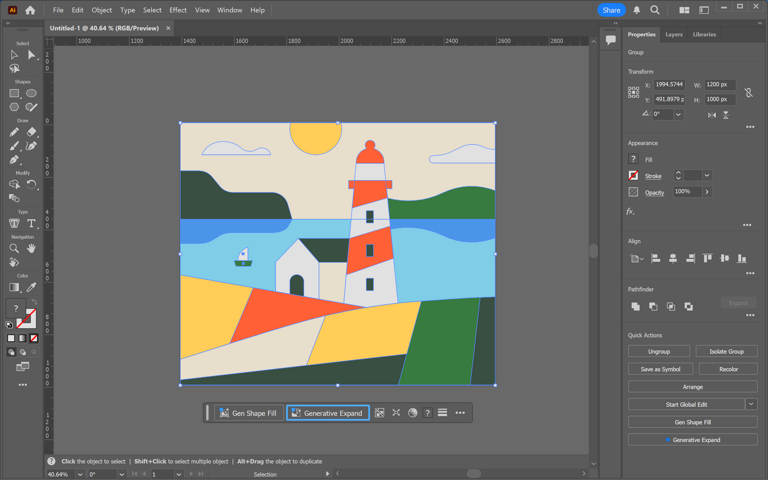
- Adobe Illustrator remains the most feature-rich option. It’s powerful, flexible, and capable of handling almost anything. But it also comes with a trade-off: complexity. For many designers, especially beginners, it can feel like you need to learn the tool before you can even start designing.
- Linearity Curve offers a simpler, faster workflow. Instead of overwhelming you with options, it focuses on making vector design feel natural from the start. Features like Auto Trace and smooth cross-device workflows make it especially appealing if you’re working on Mac, iPad or iPhone.
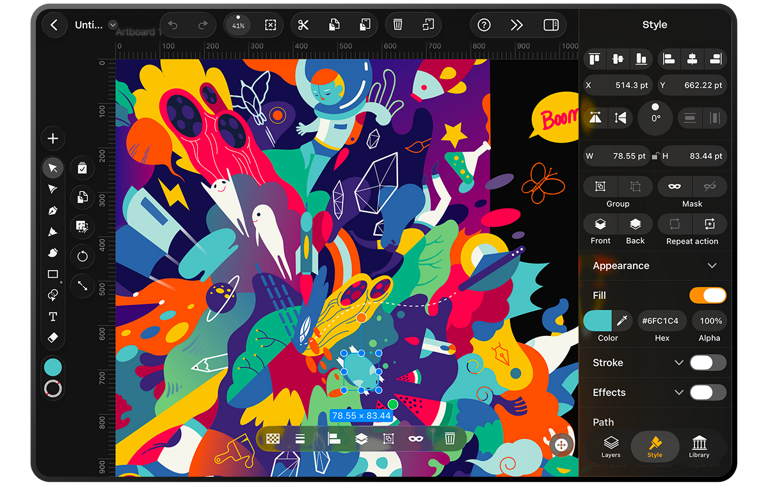
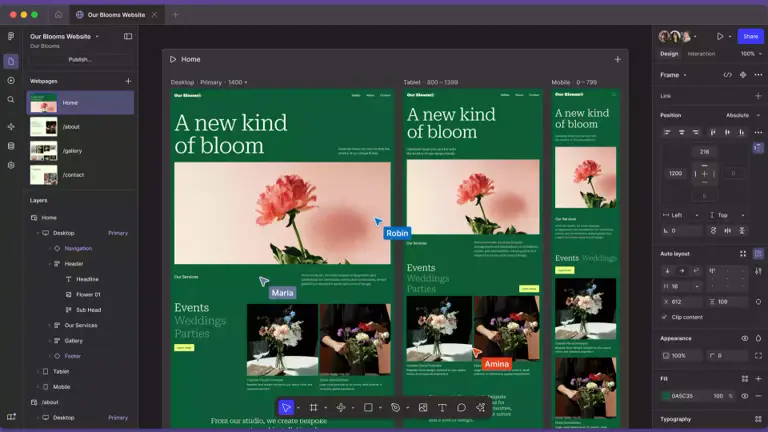
If you're considering switching from Adobe Illustrator to Curve, the full comparison including feature differences, file compatibility, and which workflows each tool handles better, is covered in the Illustrator alternatives guide. - Figma is widely used for UI and collaborative design .You can design, prototype and iterate with others in real time.
The search for an "Illustrator alternative" that's both capable and easier to learn has been growing for years. Linearity Curve and Affinity Designer are the most common answers, depending on whether you prioritise iPad workflow or desktop power.
Go deeper: Best vector design software in 2026: compared.
Also worth reading: Linearity Curve vs Adobe Illustrator: a direct comparison
Online SVG editors and the shift to cloud design
Online SVG editors let you open and edit SVG files in a browser without installing software. They're a practical option for quick edits, collaborative review, and simple creation tasks, but they have clear limits for detailed illustration or complex path work, where native apps still offer more control.
The search for an "SVG editor online" reflects something real: more vector work is moving to the browser. Tools like Figma have shown that serious design work can happen entirely in a browser, no installation, no version management, easy sharing, access from any device. This has lowered the barrier to vector design considerably.
What online SVG editors are actually good at
Browser-based SVG tools aren't trying to replace professional design software. They exist for a specific range of tasks and within that range, they do the job well.
Quick edits to existing files. Changing a colour, moving an element, swapping out text in a logo. These don't require opening a full design application. A browser tool handles them in seconds, on any machine, without installing anything.
Collaborative review. Sharing an SVG with a client or developer who needs to see it in context, mark something up, or check how it renders. Browser tools make this frictionless in a way that sending a file back and forth doesn't.
Simple creation. Basic icons, geometric shapes, simple diagrams. When the brief is straightforward and the output is a single SVG, browser tools are fast and practical.
The most commonly used options in 2026 are Boxy SVG (the closest to a proper SVG editor in the browser, with direct access to path structure), Vectr (simpler and more beginner-friendly), and Figma (not a dedicated SVG editor, but where a lot of SVG work happens in collaborative team contexts). Each has different strengths, the SVG editor online guide covers them in detail with a direct comparison.
Where browser-based tools fall short
Most browser SVG editors don't support full Bezier handle control: you can move anchor points, but fine-tuning the curve between them is either unavailable or imprecise. For clean illustration or icon work, that's a hard limit.
Complex files slow down or crash. A multi-layer SVG with detailed paths, the kind you'd actually want to edit professionally, pushes most browser tools past their performance ceiling. Typography is another weak point: font handling varies between tools, and converting text to outlines reliably is either unavailable or unreliable in most browser-based options.
There's also the privacy question. Uploading client files to a browser tool means that data is leaving your machine. Depending on the project, that matters.
When to move to a native app
The transition point is usually one of these:
- The SVG file has multiple layers that need to stay structured and editable
- You need precise Bezier curve control for illustration or icon work
- You're building assets that need to scale consistently across a design system
- File size, performance, or export quality has become a problem
- You work offline regularly or have privacy concerns about uploading client files
This is where Linearity Curve comes in. Built natively for Mac and iPad, Curve gives you full Bezier path control, a clean layer structure, Auto Trace for converting raster images to vector, and SVG export that's standards-compliant and lean, without the complexity overhead of Illustrator. For designers who've hit the ceiling of what a browser tool can do, it's the natural next step.
For designers working specifically on social media assets, format and size decisions intersect with platform requirements. The social media image sizes guide covers the output specifications for every major platform.
Go deeper: SVG editor online: what to use and when it makes sense.
Modern vector design workflow (2026)
Vector workflows today are more fluid than they used to be. Designers move between sketching, structuring, refining and exporting across multiple tools and devices, often within the same day.
A typical workflow still follows the same basic logic:
- Concept sketching. That might mean loose sketches, quick wireframes, or simple geometric exploration. At this point, the goal is direction. You’re figuring out composition, hierarchy, and the basic structure of the graphic.
- Shape building. This is where paths, basic forms and alignment matter.
- Curve refinement. You adjust anchor points, smooth out paths, simplify unnecessary complexity. This is often the slowest part of the workflow, but it’s also where the quality of the final design is really decided.
- Color and typography. This brings the design into its final form.
- Export to SVG. That's the last step and in 2026 that usually means SVG for anything digital.
Workflow also varies significantly by discipline. Animation and motion design follow a different sequence, from animatic to export, covered in the animation and motion design guide.
Where AI fits into vector design today
What’s changed recently is how fast each step can happen.
AI is starting to compress parts of the process. Tasks that used to take time, like tracing images, generating shapes, or cleaning up paths, can now be done in seconds. Tools are increasingly able to convert sketches into vectors, suggest layouts, or simplify paths automatically.
This shift is already visible across the industry. Platforms like Adobe are integrating generative AI directly into design tools, while collaborative platforms like Figma are exploring AI-assisted workflows for faster iteration. Even broader research from organizations like McKinsey & Company points to AI significantly accelerating creative workflows by reducing time spent on repetitive tasks.
But AI isn’t replacing the workflow.
You still need to:
- decide what to design
- structure it properly
- refine it so it actually works
AI can generate a starting point, but it often produces messy paths, too many anchor points, or shapes that look right but aren’t built well. AI is shifting vector design from manual creation to guided refinement. You spend less time building from scratch and more time improving, simplifying and shaping the result into something usable.
What hasn’t changed
Even with AI, the core principles stay the same:
- clean paths
- minimal anchor points
- strong structure
- scalable output
Those are still what make a good vector design.
Illustration is one of the fastest-evolving applications of vector design. The illustration styles guide covers how different visual approaches, flat, line art, isometric, corporate, are used in modern design systems.
The tools are getting faster. The workflow is getting more flexible. The difference between average and great work still comes down to how well you handle the fundamentals.
Common mistakes in vector design
The most common mistakes in vector design aren't about technique, they're structural. Too many anchor points, over-reliance on auto trace, misaligned elements and overly complex paths all reduce scalability and make designs harder to edit and reuse.
Many beginners run into the same problems when they start working with vectors:
Too many anchor points. Over-placing anchors makes paths uneven and hard to edit. Use the minimum number of points needed to describe a shape let the handles do the work.
Over-relying on auto trace. Auto trace is a draft generator, not a finished product. The paths it creates are usually complex and imprecise. Treat the output as a starting point and clean it up manually.
Ignoring alignment and grids. Vectors look imprecise when elements are slightly off-grid. Turn on snapping, use guides, and zoom out regularly to check spacing and proportions from a distance.
Overly complex paths. If a path is hard to edit, it's probably overbuilt. Ask what's actually necessary in the design and remove anything that doesn't add value.
All of these issues reduce scalability and make designs harder to reuse. A messy vector file might look fine at first glance but becomes a problem the moment you need to resize it, animate it, or hand it off to someone else.
How to fix these mistakes?
Start by simplifying your paths. Go back to your shapes and remove unnecessary anchor points wherever possible.
10 common beginner Illustrator mistakes you need to avoid
If you’re just starting out, you can also check out common beginner Illustrator mistakes and how to avoid them.
Next, treat auto trace as a draft. Use it to get a base shape, then clean it up manually.
Make alignment a habit. Turn on grids and guides, snap elements into place, and zoom out regularly to check spacing and proportions.
Finally, learn to simplify. Ask yourself what actually matters in the design and remove anything that doesn’t add value. The cleaner your structure, the more flexible and scalable your work will be.
If something feels hard to edit, it’s probably overbuilt.
The future of vector design
Vector design is evolving quickly. AI is compressing the time it takes to complete routine parts of the workflow, vectorizing images, generating initial shapes, cleaning up paths. Tasks that used to take significant time can now be done in seconds.
Platforms like Adobe are integrating generative AI directly into design tools. Collaborative platforms like Figma are exploring AI-assisted workflows for faster iteration. Even broader research from organisations like McKinsey & Company points to AI significantly accelerating creative work by reducing time spent on repetitive tasks.
But the fundamentals haven't moved.
Paths, curves and structure still define the quality of a vector design. AI can generate shapes, but it doesn't always generate good structure. You still need to clean up paths, simplify geometry and make deliberate decisions about how a design should work across sizes and contexts.
The designers who understand those fundamentals will keep having an advantage. AI can help, but because they'll know how to direct it well and recognise when the output needs work.
Whether you're creating logos, interfaces or illustrations, the goal stays the same: build something that works everywhere, scales effortlessly and remains easy to edit over time.
Explore this topic in depth
This guide covers the full landscape of vector design. Each section connects to a dedicated deep-dive. Use this map to jump to the area most relevant to you, or read the full guide below.
| Topic | What it covers |
|---|---|
| What is vector art? | The difference between vector art and vector design, and why it matters |
| Bezier curves explained | How anchor points and handles control paths — the core skill in vector work |
| SVG vs PNG | When to use each format, with a focus on web and UI contexts |
| Vector file formats guide | SVG, AI, EPS, PDF — what each format does and when to reach for it |
| How to vectorize an image | Step-by-step process for converting raster images to clean vector paths |
| Best vector design software 2026 | A practical comparison of tools for every skill level and workflow |
| SVG editor online | How browser-based SVG tools work and when they make sense |
| Illustrator alternative: Linearity Curve vs Illustrator | A direct comparison for designers considering a switch |