How to curve text in Illustrator: a step-by-step guide

Curving text in Adobe Illustrator uses two methods, the Warp effect for quick arcs and distortions, or the Type on a Path tool for text that follows any custom shape. Linearity Curve does the same with a single "Place Text on Path" function that works on any shape you draw. This guide covers both Illustrator methods and the complete Curve workflow with step-by-step instructions.
Ah, the warpy, wavy wonder of curved text. Whether it's a simple arc for a basic logo or an edgy editorial layout, curved text can add a whole new level of style to your design.
Every designer needs to know how to curve text — it's one of the first things we learn! In case you're diving into this topic for the first time or just need a refresher, we've packed the tutorial below with everything you need to get ahead of the curve.
In this Illustrator tutorial, we'll guide you through how to add a curve to text in Adobe Illustrator using the warp effect, as well as how to write text onto a curved path.
We'll also walk you through how to curve text in Linearity Curve in case you're looking for a simpler alternative to Illustrator. Last but not least, we'll seal off the tutorial with some examples to get your creative juices flowing.

What does it mean to curve text?
It’s quite simple: Curving text means transforming a straight line of text into a curved shape, such as an arc, circle, or wave.
Creating this effect is also sometimes referred to as bending text. So, if you're wondering how to bend text or how to make circle text in Illustrator, you're in the right place.
Jumpstart your ideas with Linearity Curven
Take your designs to the next level.nn
When to use curved text
Curving text is a common function in graphic design. In some cases, it will be necessary to fit the text inside a shape such as a logo. In other cases, it can bring some imagination and excitement to a basic design.
You'll find yourself curving text for all kinds of projects like:
- Shaping text to fit badges and logos
- Shaping text to fit packaging design
- Creating intriguing editorial designs
- Designing killer web pages and user interfaces
- Integrating text into an illustration.
If you’re looking to explore more advanced text techniques, check out the Linearity User Guide.
How to add a curve effect to text in Adobe Illustrator
Creating this effect is very simple! All you need to do is:
- Open your Illustrator project and have the text that you intend to curve ready.
- Select the text with your selection tool, found on the left-hand menu bar.
- Now, in your top menu bar, navigate to Effect → Warp.
- When you hover over "Warp" in your effects menu, a list of warp options will appear. Each of them refers to the shape your text will be transformed into.
- From your list of warp options, select "Arc."
- A dialog box will now appear with further warp options based on the shape you have selected.
- In this dialog box, you can adjust the default settings in order to create the desired look.
- You'll be able to edit "Style," "Bend," and "Distortion.”
- "Style" refers to the shape you've chosen. In this case, it should read "Arc," but if you want to, you can change the shape of the text from here.
- The “Bend” slider allows you to choose which direction you wish to curve the text in. Moving it to the left will bend the text downwards, and moving to the right will bend the text upwards.
- You’ll notice that you have the option to select “Horizontal” or “Vertical” for your bend. Each has a vastly different effect, as seen below.
- Under "Distortion," you'll see two slider bars: one vertical and one horizontal. You can adjust these to twist and shape the text into intriguing distortions.
- You can preview your adjustments and, once you're happy, hit "Ok."
Ready to create brand assets that pack a punch?
Visit our Academy for free advertising design courses.n
How to write text into a curved path in Adobe Illustrator
Adobe Illustrator
Instead of adding an effect to text, in this method, we'll be using the path tool and the type tool to type into a curved path.
You can get more creative with this method and create any shape imaginable with the type on a path tool.
- Open your Illustrator project.
- Navigate to the ellipse tool in the toolbar on your left-hand side.
- Draw a circle with the tool. You can create a perfect circle by holding down "shift" while you drag the circle.
- Now, navigate to the "Text" tool in your toolbar. Hold the button down to expose the text tool options. You'll be able to choose from "Vertical Type" or "Type on a path."
- Select the "Type On A Path Tool."
- Next, click the circle you just created.
- Your cursor will now be activated for you to type. As you type, the text will mold to the path of the circle.
In these steps, we used the example of a circle; however, you can use the same method to type on the path of any shape. You can even use the pen tool to create a custom shape directly from your imagination. That's why this method gives you more creative freedom.
Interested in more Illustrator tutorials? Learn how to create a transparent background.
Try an Illustrator alternative: How to curve text in Linearity Curve
Linearity Curve has tons of features for crafting and refining typography — all super simple to use!
If you enjoy using a variety of design tools or you're looking for something simpler than Illustrator yet just as powerful, try creating the same project in Linearity Curve and see how you like it.
This method is quite similar to the method for typing on a path in Illustrator. Let's walk you through it:
Start by creating your shape, for example, a circle.
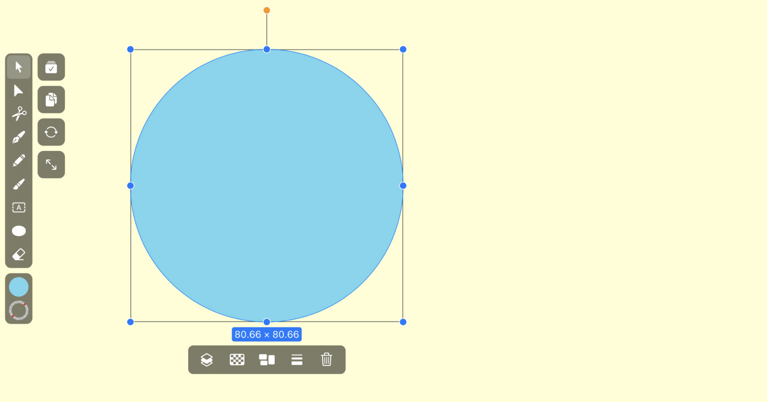
Once you're happy with the shape, activate the Text Tool.
- Drag out the text box and type your desired text inside.
- Make the necessary adjustments to your text using the Text options in the Inspector until you're happy with how it looks. You can explore the Linearity Font Library, access any Google Font you like thanks to the new fonts integration with Curve, or implement custom fonts into your design.

- After figuring out which font you want to use and editing the text, select both the circle and the text.
- Navigate to the Path Tab. At the very bottom of this tab, you'll see the Place Text on Path button.

- Your text will now mold to the shape of the circle. Easy-breezy.

You can use this method to place text on any path, from a basic shape to a custom shape you have drawn. Have fun with it.
Text on a path is one of many Illustrator techniques that transfer directly to Linearity Curve. For a full comparison of how common Illustrator tasks map to Curve — including shortcuts, file formats, and other task equivalents — see the switching from Illustrator to Curve guide.
How to curve text in Linearity Curve
Linearity Curve's text-on-path feature works on any shape — basic shapes, custom pen tool paths, or imported shapes from other tools. The workflow is faster than Illustrator's Type on a Path method because you don't need to create a separate path before adding text.
Step 1 — Create your shape. Use the Shape Tool to draw a circle, ellipse, or any geometric shape. For a custom curve, use the Pen Tool to draw an open or closed path. The shape defines the path the text will follow.
Step 2 — Add your text. Activate the Text Tool (T) and drag out a text box. Type your desired text. At this stage the text sits in a standard text box — you'll place it on the path in the next step.
Step 3 — Style your text. Before placing on the path, adjust font, size, weight, letter spacing, and colour in the Inspector panel on the right. Linearity Curve's Font Picker gives you access to all system fonts plus Google Fonts integration — select any font from the library or upload a custom TTF file.
Step 4 — Select both the shape and the text. Use the Selection Tool (V) to select both the shape and the text box simultaneously — tap one, then Shift-tap the other. Both elements should show selection handles.
Step 5 — Place Text on Path. In the Inspector on the right, go to the Path tab. Scroll to the bottom and tap Place Text on Path. The text immediately molds to the shape of the selected path.'
Step 6 — Edit position and offset. After placing the text on the path, you can adjust where along the path the text starts by moving the text anchor point. Select the path with the Node Tool and drag the text start point to reposition the text around the shape.
Step 7 — Edit the path shape. The path remains fully editable after the text is placed. Select the shape with the Node Tool and drag anchor points to adjust the curve — the text reflows to follow the updated path automatically. This means you can refine the shape until the text sits exactly where you want it without needing to redo the text placement.
Step 8 — Remove path visibility. If you want only the text visible without the shape outline, select the shape and set Stroke to none and Fill to none in the Inspector. The text stays on the path but the shape becomes invisible.
Comparison: Illustrator vs Linearity Curve for curved text
| Method | Quick arc/warp |
|---|---|
| Illustrator | Effect → Warp → Arc |
| Linearity Curve | Not available as a live effect — use path method |
| Method | Text on a shape path |
| Illustrator | Type on a Path Tool + click shape |
| Linearity Curve | Select text + shape → Place Text on Path |
| Method | Custom path |
| Illustrator | Pen tool path + Type on a Path |
| Linearity Curve | Pen tool path + Place Text on Path |
| Method | Edit path after placing |
| Illustrator | Yes — path remains editable |
| Linearity Curve | Yes — path remains editable, text reflows |
| Method | Remove path visibility |
| Illustrator | Set fill/stroke to none |
| Linearity Curve | Set fill/stroke to none |
| Method | Offset text position |
| Illustrator | Type on a Path Options → Baseline |
| Linearity Curve | Drag text anchor point on path |
| Method | Illustrator | Linearity Curve |
|---|---|---|
| Quick arc/warp | Effect → Warp → Arc | Not available as a live effect — use path method |
| Text on a shape path | Type on a Path Tool + click shape | Select text + shape → Place Text on Path |
| Custom path | Pen tool path + Type on a Path | Pen tool path + Place Text on Path |
| Edit path after placing | Yes — path remains editable | Yes — path remains editable, text reflows |
| Remove path visibility | Set fill/stroke to none | Set fill/stroke to none |
| Offset text position | Type on a Path Options → Baseline | Drag text anchor point on path |
Final thoughts
We hope this Adobe Illustrator tutorial has equipped you with everything you need to start curving text left and right.
Speaking of curves, if you’re inclined to try an Illustrator alternative — maybe you’re looking for a more affordable or intuitive tool — then we recommend giving Linearity Curve a shot.
Download it for free and put your newly acquired text curving knowledge to the test!
Jumpstart your ideas with Linearity Curven
Take your designs to the next level.nn
Frequently Asked Questions
To curve text in Adobe Illustrator, you can use the Illustrator warp text effect or the "Type on a Path" tool. These tools help bend or shape your text into curves, like arcs or circles.
To curve text around a circle in Illustrator, start by creating a circle with the ellipse tool. Then, use the "Type on a Path" tool and click on the circle. Your text will wrap around the edges, following the circular path you created.
To make text follow a path in Illustrator, use the "Type on a Path" tool. First, create a path (like a circle or custom shape) using the pen or shape tool, then select the "Type on a Path" tool and click on the path to start typing. Your text will follow the path’s shape.
Yes, curved text in Illustrator is commonly used for logos. Whether you’re creating text that fits inside a badge or making an arc for a custom design, Illustrator’s tools allow for easy curving of text.



App of the Day
6.1K ratings
Get Started for free

Design in Curve.
Create sharp, scalable designs with intuitive tools for logos, illustrations, and professional branding.

Animate in Move.
Effortlessly create animations for social media, online ads, and motion graphics.
Trusted and used by leading brands


