Make quick selections with AI Grab
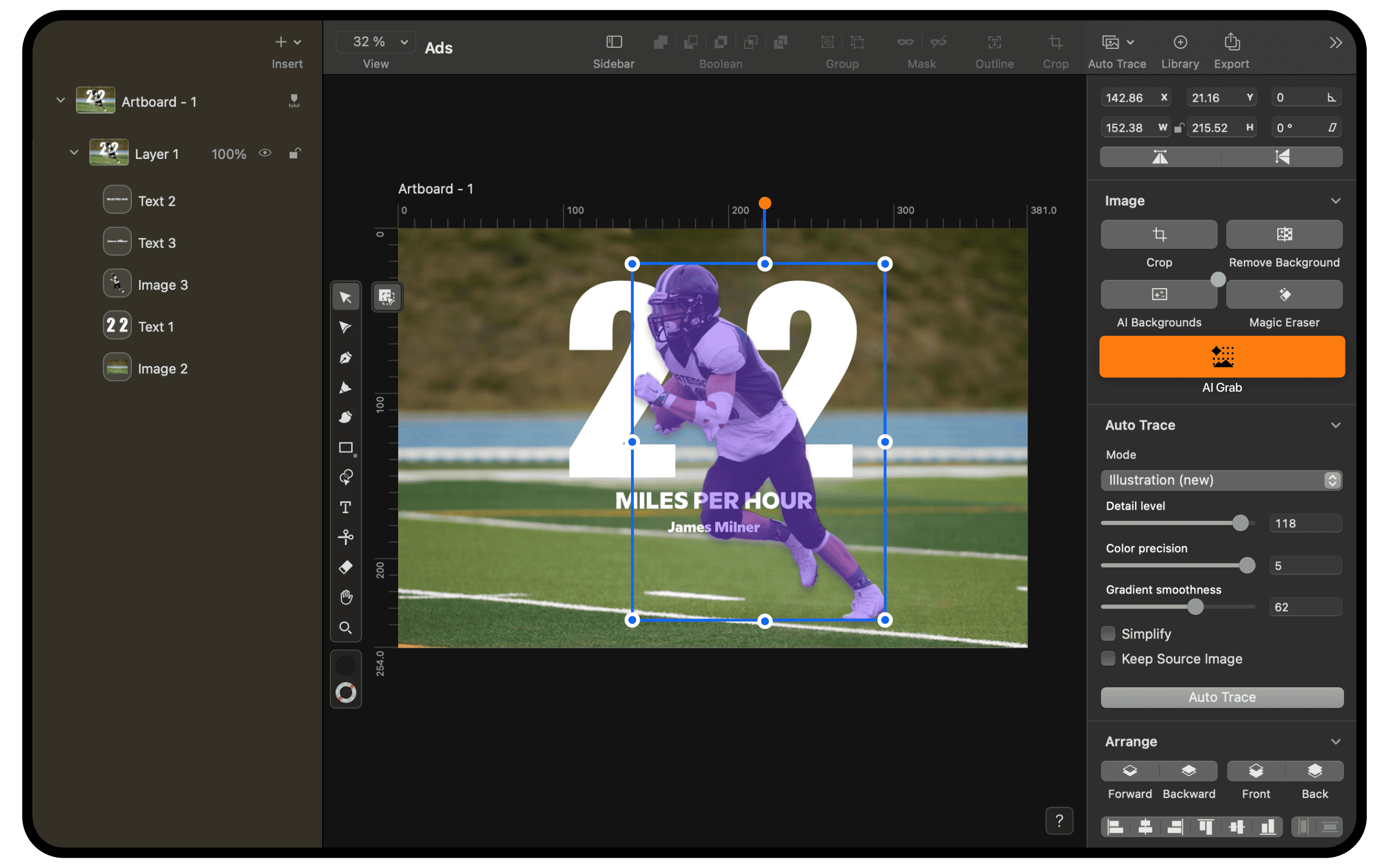
One tap is all it takes to instantly lift your photo’s subject from the background, ready for creative edits.
Just grab and go
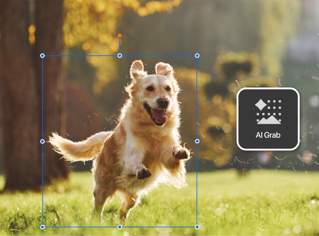
No more manual cutouts! AI Grab effortlessly isolates your photo subjects from the background, allowing for faster selections, quick repositioning, and editing.
The power of two tools combined
AI Grab harnesses the power of both Magic Eraser and Background Removal. It goes beyond simple cutouts by intelligently filling in the background behind your subject, tailored to your photo's content. This means you can dive straight into repositioning and editing your main subject alongside other design elements.
- Isolate photo subjects in seconds with automatic background filling.
- Easily position and edit your main subjects for faster creativity.
Design layered stories
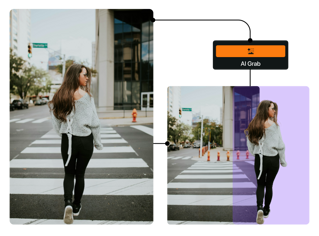
Whether you're creating a digital collage, a mood board, a social media post, or an online ad, AI Grab makes layering your assets totally effortless.
Effortlessly position your photo subject in front of or behind text, shapes, and other elements to create dynamic compositions that grab attention and tell your story in a compelling way.
- Drag to position your photo subject in front of or behind text, shapes, and other design elements.
Simplicity meets efficiency
With AI Grab, you have all you need to manipulate your images right within Linearity Curve. This feature simplifies automatic selection and photo editing, making it easier than ever to create professional designs quickly and efficiently.
- No need for manual cutouts or imports.
- Maintain your creative flow without switching tools.
Explore other Linearity tools
Linearity's powerful suite of tools is ideal for designers and animators of all levels.
Auto Animate
Turn your illustrations into moving images in seconds.
Background Removal
Remove photo backgrounds with the tap of a button.
Pen Tool
Define precise vector points and create custom paths with Bèzier curves.
Brush Tool
Freely draw editable vector paths.
Shape Builder
Quickly sculpt complex designs from multiple shapes
AI Backgrounds
Create custom, AI-generated backgrounds for your photos.

App Store Awards Finalist

G2 Top 50 Design Products

App Store Reviews

Over 6 Million Designs Created

Capterra Reviews
:quality(75))
:quality(75))
:quality(75))
:quality(75))
Hit the ground running with animated and static templates
No learning curve here. Choose between 3k+ free templates designed to supercharge your creative process.















Frequently-asked questions
When you import a photo and keep it selected, the AI Grab button will appear in the content-aware Inspector panel. Just click or tap the button, and let the software automatically lift the subject from the background. Once the cut-out is ready, you can reposition and edit it just like any other design element.
AI Grab in Linearity Curve automatically isolates the subject of your photo and creates a subject layer while keeping the background layer intact.
When you import a photo and select it, AI Grab quickly lifts the subject from the background and places it as a new, editable layer in the layers panel. This allows you to easily reposition or edit the subject without affecting the background, streamlining your workflow for faster adjustments and creative flexibility.
Both AI Grab and Background Removal in Linearity Curve are designed for creating photo cutouts, but they work in slightly different ways. Background Removal cuts out the background, leaving only the foreground subject in the document. In contrast, AI Grab isolates the subject without removing the background, allowing you to drag to reposition the selection while keeping the background intact.
Designers can find these selection tools in design software like Adobe Photoshop, Adobe Illustrator, Affinity Designer, CorelDRAW, and Linearity Curve.
In Adobe Photoshop, tools like the marquee, lasso, magic wand, and pen tool are widely used for basic and complex object selection. Additionally, Photoshop offers advanced features like Select Subject and Refine Edge for detailed selections.
Adobe Illustrator provides similar tools, such as the lasso tool and direct selection tool, for selecting vector objects or anchor points.
In Affinity Designer, you can use the marquee tools, lasso tool, and pen tool for precise selections.
CorelDRAW offers basic selection tools like the pick tool for object selection and node editing for complex and detailed selections in vector graphics.
In Linearity Curve, the AI Grab feature allows you to effortlessly isolate your photo subject by automatically separating it from the background.
Simply import your photo and select the Magic Eraser tool icon on the Toolbar in Linearity Curve. Then, glide your stylus or cursor over the unwanted area, and it will be instantly removed once you release your pen or finger. Create movements just like you're drawing a path with Brush Tool.
Linearity’s Background Removal Tool is similar to cutting out something on paper, but digitally. Its custom machine-learning algorithm detects the edges of the main subject in an image and separates it from the background, leaving the background transparent. The result is a crisp photo cut-out that’s ready to use in any design.
:quality(75))