Sculpt designs with the Shape Builder Tool
Linearity Curve’s dynamic Shape Builder Tool allows you to quickly sculpt complex designs from multiple shapes.

Draw with shapes
The efficient and intuitive Shape Builder Tool encourages you to think outside the box (literally). It allows you to sculpt complex logos, illustrations, and more by merging and subtracting overlapping areas of multiple shapes.
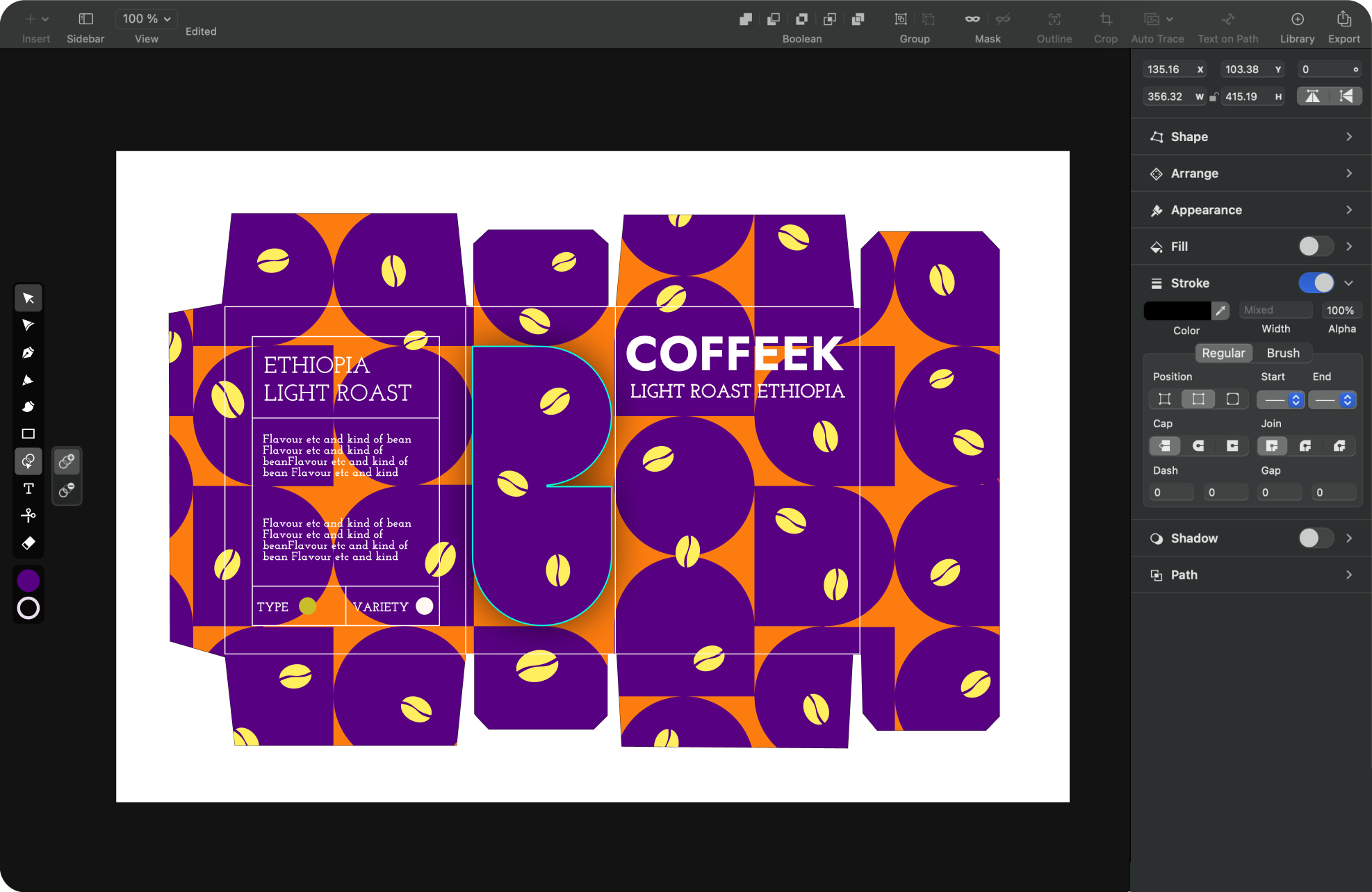
Shape up your logo ideas


When starting a logo design project, it’s often difficult to know where to begin. The Shape Builder Tool provides a quick and alternative method to jumpstart your ideas. Rather than meticulously draw straight lines or curves, start by quickly laying down overlapping circles, polygons, or rectangles. The goal is to form your logo design using the intersecting sections of these shapes.
Jumpstart your design workflow
Are you ready to explore Linearity Curve’s powerful tools and features?
Shape Builder Tool vs other tools
Unlike other tools, the Shape Builder Tool in Linearity Curve simplifies vector editing for graphic designers, offering an intuitive approach to shape combination and path unification.
Instead of laboriously drawing lines and curves, experiment with overlapping shapes, polygons, or rectangles to craft unique logos and illustrations.
Features | Other tools | |
|---|---|---|
Merge and erase modes | ||
Innovative path unification | ||
Simplified vector editing |
1 million+ high-resolution images
Choose from a library of royalty-free photos.
4,000+ design templates
Launch ideas faster with free, customizable templates.
80k+ royalty-free icons
Drop these vector elements straight into your document.
Explore other Linearity Curve tools
Linearity Curve’s powerful suite of tools makes design fast and intuitive. You can create user interfaces, social media posts, logos, lettering, and print designs, all in the same tool. Then bring your designs to life by animating them in Linearity Move.
Learn more on our Blog and Academy

Inside linearity
How to generate and edit images with AI in Linearity
By Nadya Kunze
Inside linearity
How AI vector generation creates editable artwork
By Nadya Kunze
Animation Resources

Animation for beginners: How to get started & which software to use
By Valentina Perezalonso
Frequently asked questions
Activate the Shape Tool in the Toolbar and select at least two shapes on your canvas. Choose between the Merge or Erase Mode. Then click (or tap) and drag along the intersecting areas of your selected shapes to erase or connect the intersecting areas. Merge Mode connects intersecting areas, and Erase Mode deletes intersecting parts.
If Shape Builder has created too many Nodes in your resulting shape after you applied the Merge or Erase operation, you can select the extra nodes with the Node Tool and then click (or tap) the Delete Nodes Button in the Path Section.
As the Boolean operation Subtract, you can subtract the overlapping parts of your selected shapes with the Erase Mode. If you want to erase overlapping elements, click or tap and drag across your selected shapes to erase multiple shape intersections.
When the Erase Mode is activated, a thick red outline marks the intersecting shape parts you are currently erasing.
The Shape Builder creates elaborate shapes easily. You can merge or erase areas of intersecting shapes with the Shape Builder Tool. You can merge or erase multiple shape parts and create an entirely new shape. This feature is handy for creating geometric logos, illustrations, and lettering shapes. The Shape Builder Tool functions similarly to Boolean Operations, merging two shapes into one or erasing overlapping areas.
For the Shape Builder Tool to function correctly, you must first activate the Selection Tool in the Toolbar. Then you need to select at least two shapes for the operation to be applicable. To select multiple shapes, use the Multi Select Mode. Then choose between Merge or Erase Mode and start clicking and dragging (or tapping and dragging) along the overlapping areas of your selected shapes to connect or erase these areas.
Join the Linearity Community














:quality(75))