
Editor's Choice

App of the Day

2,700+ Reviews

Vector Design
Precise. Creative. Fluid.
Precise. Creative. Fluid.
Fast and intuitive vector design for bold, precise creativity.
Design anywhere — on iPad, Mac, or iPhone.


Curve exists for the illustrators, graphic designers tired of bloated interfaces, steep learning curves, and disconnected tools.
Illustrate Like a Pro
Sketch, draw, and bring your ideas to life with tools built for expressive, editable vector illustration.
Custom Brushes
Pressure-sensitive, fully vector, and perfect for expressive drawing
Advanced Gradients
Linear, radial, and mesh-style gradients for dimensional shading
Pro Color Controls
Precision sliders, palettes, hex input, and real-time preview
Vector Effects
Add shadows, blurs, and more — non-destructive and editable anytime
Powerful Image Editing
Bring raster and vector together with powerful editing tools, all in one canvas.
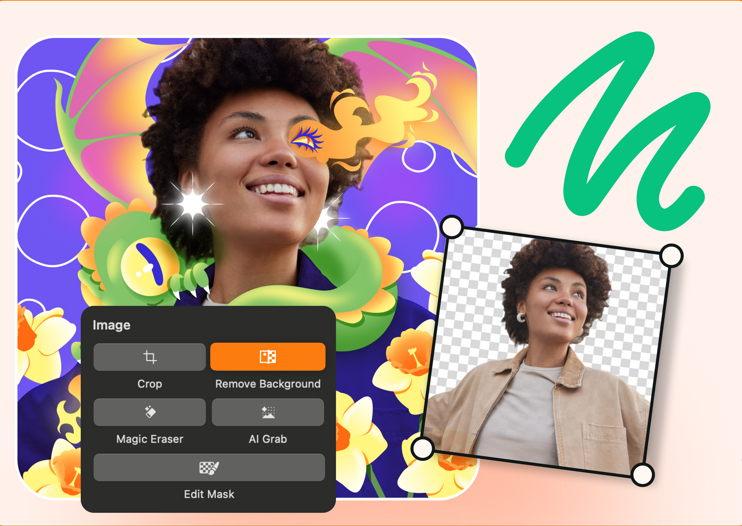
Background Removal
Erase backgrounds instantly with AI-powered tools
AI Grab
Detect and isolate subjects or objects in seconds
Magic Eraser
Tap to clean up unwanted elements with smart removal
Vectorise Images in One Click
Convert images, logos, or sketches into editable vector paths with Auto Trace – perfect for rebrands, redrawing, or logo refinement.

Vector Design, Perfected
Create clean, scalable, precise vector artwork, from the smallest icon to a full brand system.
Snap to Close Path
Automatically closes open paths with precision
Smart Shapes
Easily create and adjust rectangles, circles, polygons, and stars
Corner Radius Tool
Refine corners with pixel-perfect control
Pen Tool
Draw smooth Bézier curves with anchor point finesse
Node Tool
Edit handles, angles, and curves with intuitive grip
Shape Builder
Combine, subtract, and intersect shapes visually and interactively
Typography That Works for You
From editorial layouts to logos, Curve gives you complete creative control over your type.
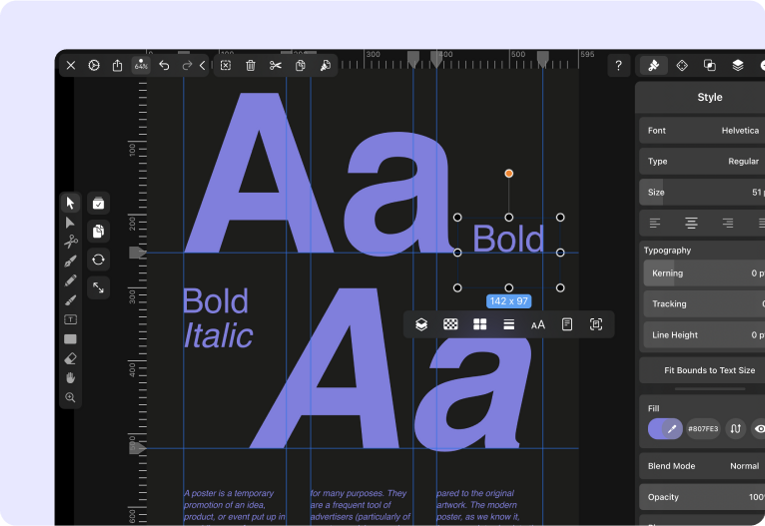
Advanced Text Tool
Adjust tracking, kerning, alignment, and multi-line styles
Text on Path
Wrap text around shapes and curves with precision
Custom Fonts
Upload and manage your own typefaces effortlessly
Brush-Styled Text
Convert type to outlines and apply vector brush styling
Font Auto-Resolve (coming soon)
Never worry about missing fonts in shared files
Print-Ready Designs
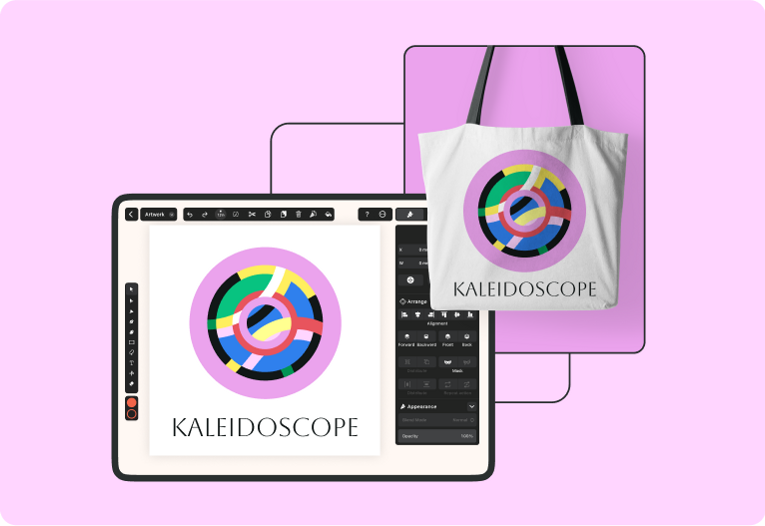
Design with production in mind. Deliver perfect print outputs with zero compromise.
CMYK Precision
CMYK support for accurate color reproduction
High-Res Export
Export clean PDFs, SVGs, EPS, and more
Ready for Print
Perfect for packaging, posters, and editorial layouts
Edit PDFs Easily
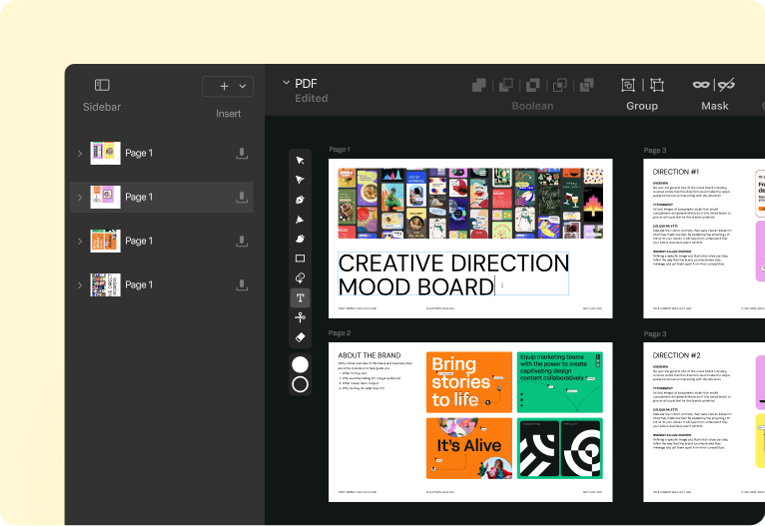
Open, edit, and transform PDFs as native Curve files, without losing fidelity.
Editable Content
Edit text, layout, and images directly in the file
Annotate & Sign
Sign, annotate, or redesign client deliverables with ease
Export Anywhere
Export for print or digital — no external tools needed
Everything you Need to Get Started
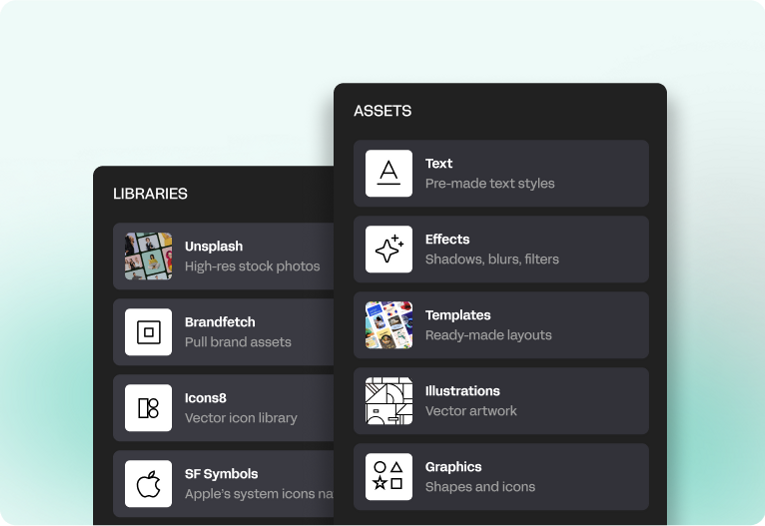
Stop searching. Start designing. Everything you need is right inside Curve.
Brandfetch Integration
Automatically pull company brand assets
Unsplash
Search and insert high-res stock photography
SF Symbols
Use Apple’s system icons natively
Icons8
Explore thousands of vector-ready icons
Templates
Jumpstart your work with pre-built layouts
Cross-Tool Compatible
Import/export to Figma, Illustrator, and Sketch
Workspaces & Collaboration
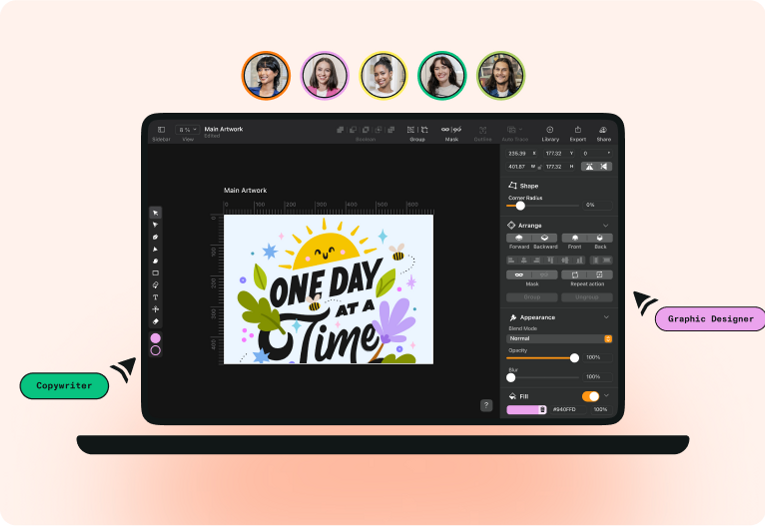
Keep your creative life organized across projects, teams, and clients.
Flexible Workspaces
Switch between personal, team, or client workspaces
Seamless Sync
Share files instantly across devices
Built for Teams
Ideal for freelancers, studios, and in-house creative teams
Why Choose Linearity
Curve Made for illustrators, designers and creative professionals

Buttery Smooth Flow
A context-aware interface that stays out of your way and keeps you in the zone. Quick Actions and gesture controls make navigating your canvas feel effortless.

Mac-Native & Polished
Built by designers, for designers — clean, focused, and fluid. Not bloated. Just what you need, when you need it.

Vector Design, Perfected
Precision tools for paths, shapes, fonts, and strokes — built for serious vector work.

Create Anywhere
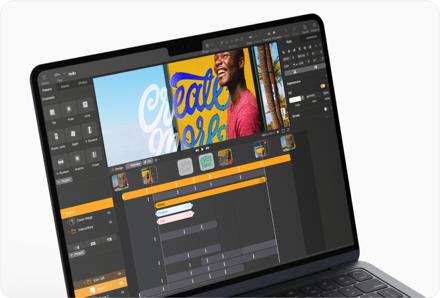
Design freely across Mac and iPad — with full native support.
Built for iPad & Mac
Runs on iPadOS 14 or macOS Big Sur and later

Apple Silicon native
Universal macOS + iPadOS apps
One-time sign in, one creative flow
Apple Pencil optimized
Loved by creatives
Curve made my branding work smoother. I built a full logo system, posters, and social assets in days. The tools are precise, fast, and easy to use.

Amelia Carter
Brand Designer

Move is perfect for quick animation. I create motion graphics for campaigns and client decks that look polished. It saves time compared to heavier software.

Ravi Patel
Motion Designer

The learning curve was short. Within a week I was sketching, refining, and exporting client-ready illustrations. Curve feels intuitive yet gives me control.

Jonas Müller
Marketing Creative

I used to juggle multiple apps for marketing visuals, but Curve replaced them all. It’s fast, reliable, and flexible for social ads and print. One tool saves me hours each week.

Hana Kim
Illustrator

Curve and Move together are a game-changer. I design in Curve and animate in Move without losing time or quality. The integration keeps my workflow seamless.

Clara Rossi
Creative Director

Everything you need to get started
Level up your creative flow with tutorials, templates, and guides made for creatives using Linearity.
Frequently Asked Questions
Have more questions? Visit our help center.
No, your work remains exclusively yours.
We do not use any of your files for AI training unless you explicitly opt-in within the application. The only way to opt-in is by using the Auto Trace, Background Removal, or AI Backgrounds feature and then interacting with the feedback modal displayed afterwards. If you haven't seen this alert and haven't interacted with it, you can be confident that we are not using your files for training.
Yes, Linearity Curve can be used offline. Since it’s a native app for Mac, iPad, and iPhone, most core features—including creating, editing, and exporting vector designs—work without an internet connection.
✅ Design tools, layers, and effects work normally offline.
✅ You can save and open files stored locally.
🚫 Features that rely on cloud access—like syncing files across devices or pulling assets from online libraries—may be limited or unavailable offline.
🔄 Once you're back online, syncing and cloud backups resume as usual.
So you’re good to go for working on flights, in cafes with spotty Wi-Fi, or anywhere you want to design distraction-free.
Although it's called the Pen Tool, this digital tool is not used like a regular pen.
In the past, it's been called the Bèzier Tool, named after Pierre Bèzier, the person who invented it. It has also been known as the Path Tool, since you can use it to draw a vector path line.
Today, the Pen Tool is perhaps the most powerful and important digital tool for designers out there. Most graphic designers, illustrators, and creatives need and use it every day, which is perhaps the reason it's named after such a common and useful object.
In graphic design, a path is a line that appears when you draw using a vector tool as the Pen, the Pencil, or the BrushTool. It is made up of a series of anchor points (or nodes).
There are mostly three types of paths:
Open path: A single path (or line) with two end anchor points.
Closed path: A closed shape that has no end point.
Compound path: Two or more open or closed paths connected with each other.
The Pen Tools in Adobe Photoshop, Adobe Illustrator, and Linearity Curve (formerly Vectornator) allow you to draw paths, but there are some subtle differences in how they work.
Unlike Adobe Illustrator and Linearity Curve, Photoshop is a raster-based image editing software. The pen can be used to draw fixed pixel-based shapes, a bèzier path, or a bèzier path-based shape.
In Illustrator, the Pen Tool is used to draw vector paths that can be scaled to any size. Any path can also be edited after it's drawn to take on the qualities of a different brush stroke or effect.
Linearity Curve's Pen Tool is also vector-based and allows you to create custom paths with bèzier curves. Like in Illustrator, any path you draw in Curve using the Pen Tool can be edited. However, we designed our Pen Tool to feel more intuitive, especially when it comes to using an iPad and Apple Pencil. Find out more about our amazing Pen Tool in our user Guide.
Digital vector artists can use the Pen Tool, the Brush Tool, the Pencil Tool, and even the Shape Tool to draw. There are many powerful tools and techniques for drawing digitally, but plotting out points with the Pen Tool is the most precise way to create an accurate line or a smooth curve segment.
Linearity Curve users on desktop can use their trackpad or mouse button to click to add anchor points. And if you're using the iPad or drawing tablet, just tap with your stylus to add points as you draw. You path's direction and angle is determined by the position of the node handles.

App of the Day
6.1K ratings
Get Started for Free

Design in Curve.
Create sharp, scalable designs with intuitive tools for logos, illustrations, and professional branding.

Animate in Move.
Effortlessly create animations for social media, online ads, and motion graphics.