Linearity is now in ChatGPT
Connect Linearity to ChatGPT to find brand assets, manage files, create editable designs, images and SVGs directly from your conversation.
Linearity is now available in ChatGPT, so you can find brand assets, manage files, and create editable designs without leaving your conversation.
The Linearity plugin connects ChatGPT to your Linearity workspace. Ask for a logo, check a brand rule, find a project, or turn a prompt into a real design file whose text, images, vectors, colors, and layers remain editable.
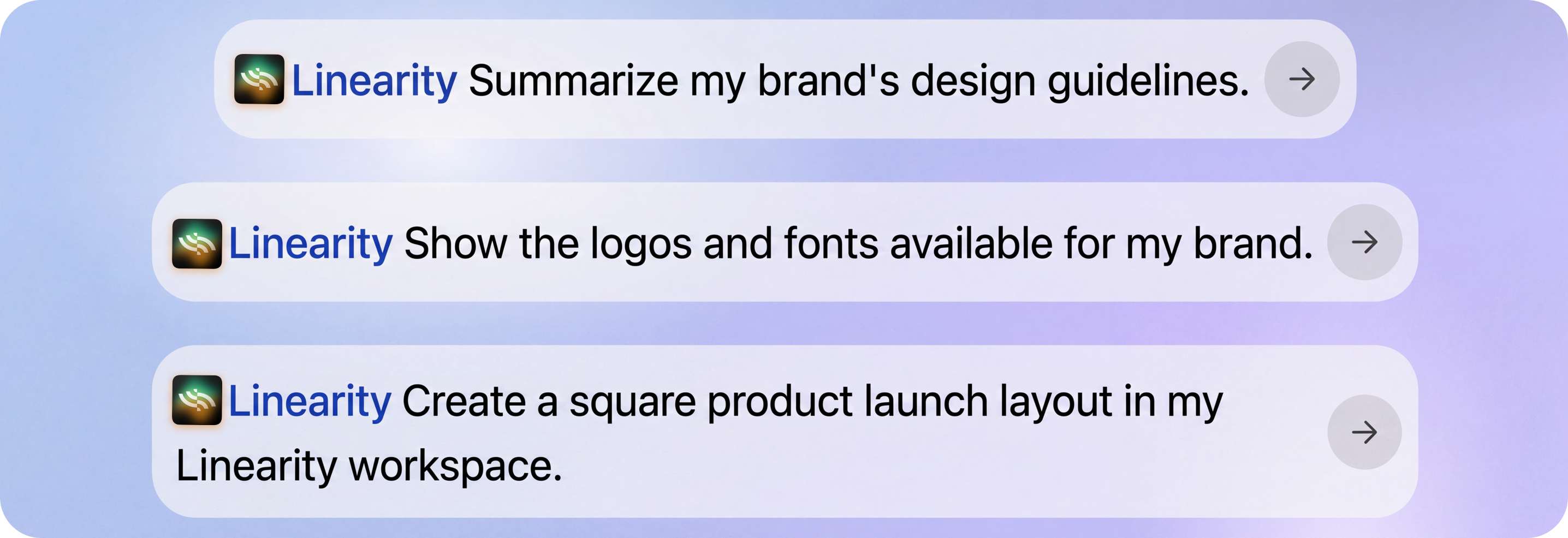
What the Linearity plugin can do
You can use natural language to move from a question or brief to the right brand asset, file, or editable design.
| What you want to do | What the Linearity plugin does |
|---|---|
| Make a design | Creates an editable layout from a prompt |
| Make a single visual | Creates a standalone image or SVG |
| Stay on brand | Reads your brand guidelines and design guides |
| Find brand assets | Finds approved logos, imagery, and fonts |
| Find your work | Lists and searches workspaces, teams, folders, and files |
| Organize files | Opens, renames, moves, and deletes files |
How to install and connect it
- Open the Linearity plugin page in ChatGPT.
- Select Install.
- Sign in to your Linearity account and approve the connection.
- Start a new chat and mention Linearity when you want ChatGPT to use it.
You only need to connect once. If you work across several teams or brands, tell ChatGPT which workspace or brand to use.
Connect Linearity to ChatGPT
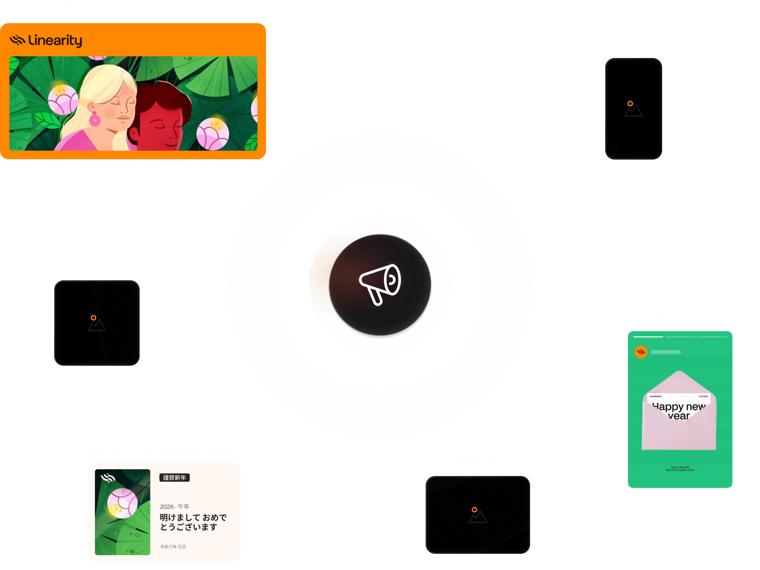
Check brand guidelines, logos, and fonts
Before creating anything, ask Linearity to check the brand. The plugin can read the guidelines and approved assets in your workspace, helping every new design begin with the right logo, colors, fonts, imagery, and tone of voice.
Try prompts like:
- Ask Linearity for the brand colors and fonts for our main brand.
- Find the approved horizontal logo.
- Check whether this campaign follows our design guidelines.
Learn more about keeping creative work consistent with Linearity brand management.
Find and manage files
Ask ChatGPT to search your Linearity workspace by name, team, folder, or project. It can open files, rename them, or move them into the right folder, which makes it easier to find the latest approved version.
Try prompts like:
- Find the latest Q4 campaign file in Linearity.
- Rename this file to Final social campaign.
- Move the approved logo exploration into the Brand assets folder.
Be careful with deletion. Deleting a file is permanent, so confirm that you have the correct file before asking the plugin to remove it.
Create an editable design from a prompt
Give ChatGPT a brief, tell it to use Linearity, and turn your ideas into fully editable designs. Instead of getting a flat image, you’ll get a layout you can open in Linearity and customize down to the smallest detail.
What can you create?
Start with a simple prompt, campaign brief, meeting notes, or an existing asset. For example:
- Create three social media posts based on our October campaign brief.
- Turn these investor meeting notes into an editable Q1 pitch deck.
- Create a square product launch graphic using my brand guidelines.
How it works
- Describe what you need. Include the type of asset, target audience, format, and key message.
- Choose your brand. Tell ChatGPT which Linearity brand or workspace to use.
- Request an editable design. Ask ChatGPT to create it with Linearity.
- Make it yours. Open the result in Linearity to adjust the text, colors, images, layout, or any other element.
With Linearity in ChatGPT, you can go from a conversation to an editable, on-brand design without starting from scratch.
Generate an image or SVG
If you need one visual rather than a full layout, ask for an image or a vector asset. For logos, icons, diagrams, and illustrations that need clean paths, request an SVG and continue refining it.
See how Linearity's AI vector model creates editable vector graphics.
Tips for better results
- Mention Linearity explicitly when you want ChatGPT to use the plugin.
- Name the workspace, team, folder, or brand when the context matters.
- Include the output format and dimensions in your design brief.
- Ask for an editable design when you need a full composition.
- Ask for SVG when you need an individual vector asset.
Credits and permissions
Generating designs, images, and vectors uses Linearity credits. Searching, opening files, and reading brand guidelines does not. The plugin only accesses the Linearity workspaces and content available to your connected account, using the same permissions you already have in Linearity.
For more details, review available plans on the pricing page.
Frequently asked questions
It can read your brand guidelines, find approved assets and files, organize your files, and create editable designs, images, and SVGs from a prompt.
Yes. Layouts created with Linearity open as real design files, with editable text, images, vectors, colors, and layers.
No. Sign in and connect your Linearity account once. In a new chat, mention Linearity when you want ChatGPT to use the plugin.
Generating designs, images, or vectors uses Linearity credits. Searching for files, opening them, and checking brand guidelines does not.


App of the Day
6.1K ratings
Get Started for free

Design in Curve.
Create sharp, scalable designs with intuitive tools for logos, illustrations, and professional branding.

Animate in Move.
Effortlessly create animations for social media, online ads, and motion graphics.
Trusted and used by leading brands


