AI design: a practical guide to images, vectors, and editable workflows

Learn what generative AI creates, when to choose raster or vector output, and how to turn a prompt into finished design work in Linearity.

AI starts the design. You decide where it goes.

Linearity Curve generates raster images and real vector artwork from a prompt. Vector results arrive as editable shapes, paths, and layers; raster results can be reprompted, resized, cropped, masked, and combined with the rest of your design.

Generation is available in Linearity on Mac, iPad, and the web, so you can create and continue refining your work across supported devices.

The foundation

What is AI-assisted design?

AI-assisted design uses generative models to create a visual starting point from instructions, references, and constraints. The generated result is not the finished design: designers still direct the concept, correct the composition, apply brand decisions, and prepare each final format.

In Linearity Curve, the same workflow can begin with either a raster image or editable vector artwork. That distinction determines how the result behaves when you recolor it, reshape it, scale it, or reuse it across a campaign.

Choose an output

AI images and AI vectors solve different design problems

Choose based on what must remain editable, how the artwork will scale, and where the finished asset will be used.

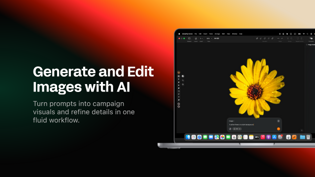
Choose AI image generation for visual richness

Raster generation is suited to photographic scenes, textures, atmospheric artwork, and detailed visual exploration.

  • Best for photography-like imagery and complex textures
  • Refine the direction through prompts and references
  • Crop, mask, resize, and combine the result with a layout
  • Export to raster formats such as PNG, JPEG, or TIFF
Explore AI image generation

Choose AI vector generation for structural control

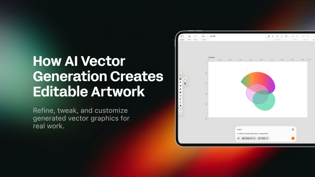
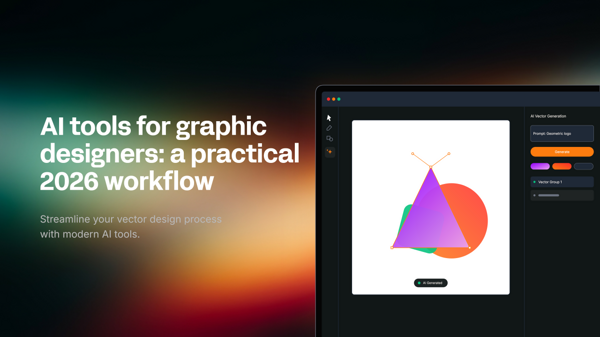
Vector generation is suited to icons, illustrations, graphic assets, and artwork that must remain scalable and editable.

  • Edit individual paths, shapes, colors, and layers
  • Scale artwork without losing sharpness
  • Adapt one result across sizes and campaign formats
  • Export to SVG, PDF, AI, and raster formats
Explore AI vector generation

From prompt to production

A practical AI design workflow keeps the designer in control

Reliable results come from a sequence of creative decisions, not from finding one perfect prompt.

  1. 01

    Define the communication goal

    Start with the audience, message, format, and intended action. A clear design brief gives generation a useful direction.

  2. 02

    Generate and compare directions

    Explore multiple compositions instead of polishing the first result. Compare hierarchy, silhouette, mood, and suitability for the final format.

  3. 03

    Edit the result as design material

    Reprompt raster imagery or refine vector shapes and layers. Correct structure first, then typography, colors, details, and brand decisions.

  4. 04

    Adapt, check, and export

    Test the design at every required size, verify readability and consistency, then export the correct files for web, social media, or print.

Product-specific guidance

What remains editable after AI generation?

  • Vector output remains structured as editable paths, shapes, colors, and layers.
  • Raster output remains a pixel image, but it can be reprompted, cropped, masked, resized, and composed with other design elements.

Edit the largest decisions first

  • Correct the silhouette, proportions, and visual hierarchy before polishing details.
  • Delete shapes or objects that add noise without improving the idea.
  • Replace generated colors with exact brand values and check contrast.
  • Group related elements before resizing or adapting the composition.
  • Test the design at its smallest and largest intended sizes before export.

Learn the workflow

Understand what AI creates and how to edit it

Practical explanations for choosing image or vector output and turning generated material into finished design work.

Go deeper

Guides, product updates, and proven techniques

Connect AI generation with Linearity's existing vector tools, design principles, and production workflows.

FAQ

Common questions about AI design

What is the difference between an AI image and an AI vector?

An AI image is a grid of pixels, while an AI vector is constructed from mathematical paths and shapes. Images support photographic detail; vectors provide direct structural editing and resolution-independent scaling.

Can AI-generated vectors be edited?

Yes. Vector results generated in Linearity Curve remain editable as paths, shapes, colors, and layers, so designers can restructure the artwork instead of accepting a flattened result.

Does AI replace the design process?

No. Generation accelerates exploration, but designers still define the goal, choose the strongest direction, correct the composition, apply brand standards, and prepare usable final assets.

Which file formats can Linearity Curve export?

Curve supports production formats including SVG, PNG, JPEG, TIFF, PDF, and AI. Print work can also be prepared as a PDF with bleed where required.

One prompt,
every marketing asset.

Don't take our word for it. Prove us wrong. Type a prompt.