Simplify your workflows with our new Auto Trace
Instantly transform raster images into beautiful high-quality vector assets.
From raster to vector in a tap
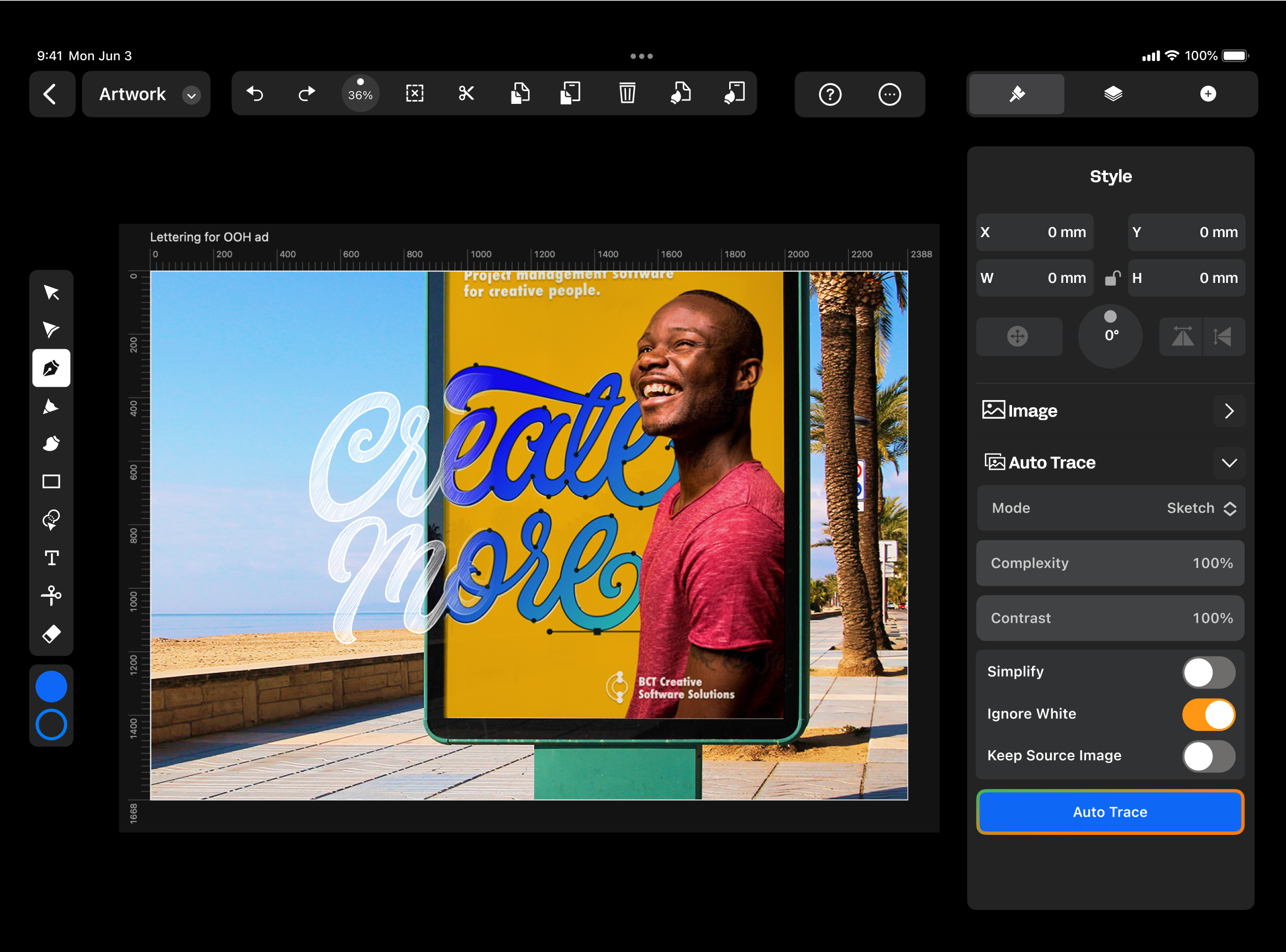
Auto Trace uses a custom algorithm to turn sketches and photos into endlessly editable vector graphics. Rather than spend hours tracing over images with the Pen Tool, let Auto Trace work its magic. Then, spend your time refining the details by creating or deleting paths and nodes, changing colors, and more.
Tailored for every image
Auto Trace has four modes: Photo, Sketch, Illustration, and Basic Shapes. Each one is specially designed for different types of images.
- Photo Mode: Watch as pixels in your photos instantly become editable vector shapes.
- Sketch Mode: Turn your pen and pencil drawings into sleek vector paths.
- Illustration Mode: Transform raster illustrations into stunning full-color vector graphics.
- Basic Shapes Mode: Simplify low-detail images with minimal vector shapes.

What sets Linearity's Auto Trace apart
With just a tap, Auto Trace utilizes a custom algorithm to transform raster images and photos into editable vector graphics. Whether you’re converting sketches or photos, this AI-powered tool streamlines the process.
Compared to other tools, you'll spend less time on tedious manual tracing, and will have more time to spend on refining details.
- AI precision
- Easy + instant transformation
- Custom algorithm for different image types

Fine-tune the results
Each Auto Trace mode comes with customizable sliders, giving you precise control over the results:
- Detail Level: Crank it up for intricate detail or dial it down for a sleek, simplified look.
- Color Accuracy: Perfect your colors with precision for vibrant, true-to-life hues.
- Gradient Smoothness: Smooth out those gradients with flawless transitions by tweaking the steps and layers.
Explore other Linearity tools
Linearity's powerful suite of tools is ideal for designers and animators of all levels.
Auto Animate
Turn your illustrations into moving images in seconds.
Background Removal
Remove photo backgrounds with the tap of a button.
Pen Tool
Define precise vector points and create custom paths with Bèzier curves.
Brush Tool
Freely draw editable vector paths.
Shape Builder
Quickly sculpt complex designs from multiple shapes
Design and Animate mode
Seamlessly toggle between designing and animating.

App Store Awards Finalist

G2 top 50 design products

App Store Reviews

Over 6 Million Designs Created

Capterra Reviews
:quality(75))
:quality(75))
:quality(75))
:quality(75))
Hit the ground running with animated and static templates
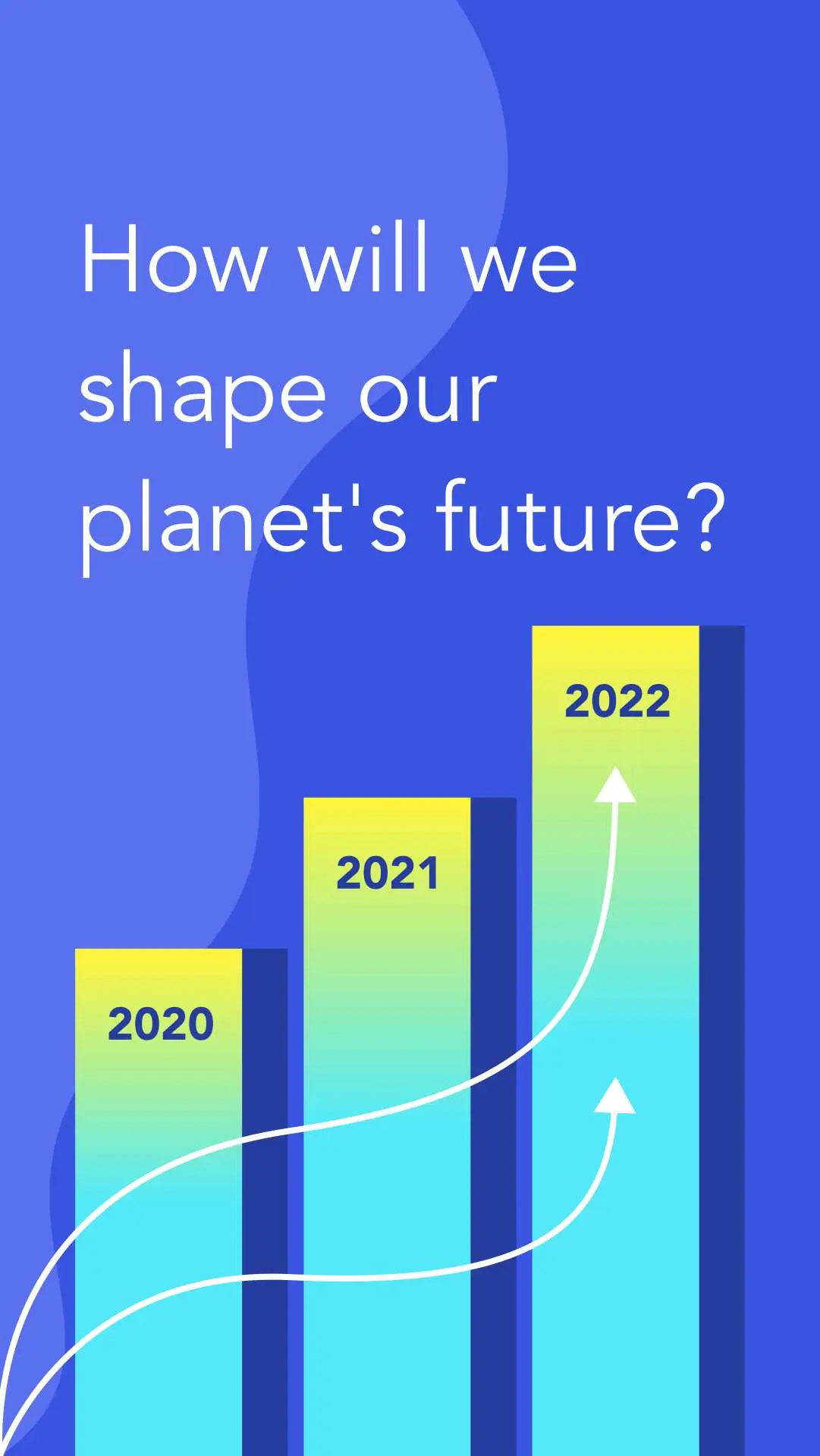
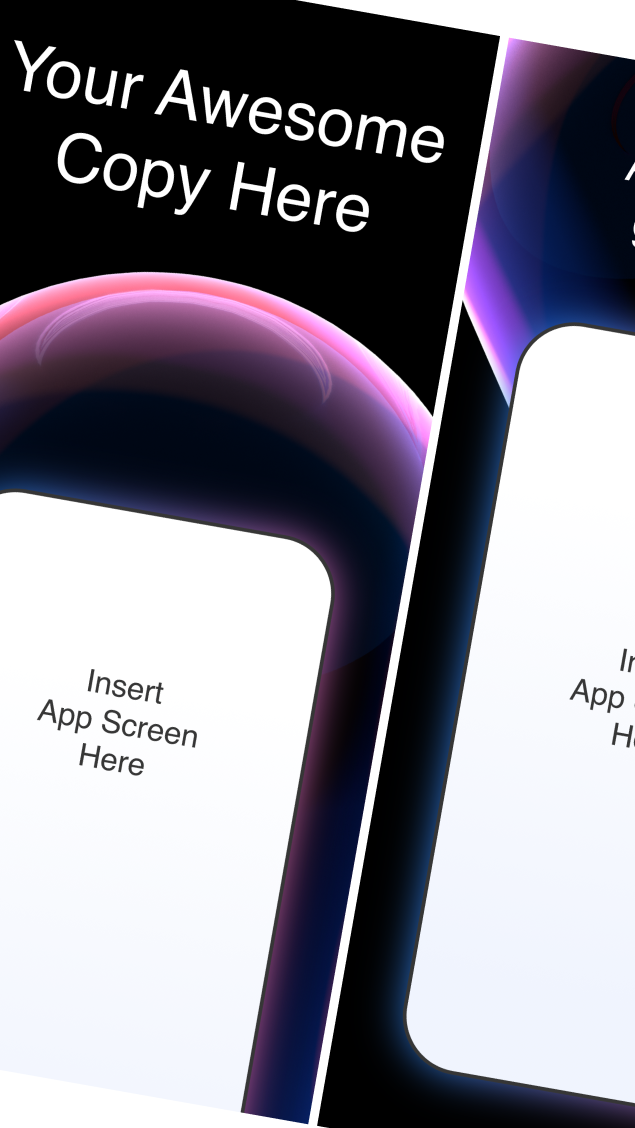
No learning curve here. Choose between 3k+ free templates designed to supercharge your creative process.















Frequently-asked questions
It's super easy. Simply import and select the sketch or photo you want to image trace and select Auto Trace in the Quick Actions tab. Our software will automatically analyze your input image and decide between "Sketch" or "Picture" in the "Type" picker section of the Inspector. Next, our tracing options allow you to adjust the complexity and contrast settings to get the perfect level of detail in your digital artwork. Finally, hit the Auto Trace button and watch your raster graphics turn into high-resolution images within seconds! Once complete, you can use the additional options and tools in Curve to refine your design.
There are some image trace websites that offer to convert raster graphics into vectors for free. However, the outcome isn't always as precise as you'd like. Curve is free to use for anyone with an iOS device, and the quality of our Auto Trace functionality is something we're proud of.
Auto Tracing is a process in Linearity Curve that allows you to transform any image into vector graphics. Our image trace technology is especially powerful when it comes to turning black and white sketches into editable vector paths. Our Auto Trace functionality can even turn photos into digital paintings with customizable brushstrokes. To understand more about why designing with vectors is a good idea, our Academy is a great source of content.
Design is a translation of life. In the past, hand tracing was the only way to turn an existing image into a vector drawing. This is a very common graphic design software use case. Photo-editing software, such as Adobe Photoshop, is based on raster graphics (or pixels).
Raster graphics can’t be scaled because they lose image quality. Scalable vector graphics are based on mathematical equations to form Bézier curves. These plot lines make it possible to infinitely scale graphics without losing their crispness.
But what if you want to transform a raster image into vector shapes? Linearity Curve’s (formerly Vectornator) Auto Trace technology transforms any pixel image into an illustration made out of vector shapes. You can then manipulate these shapes as much as you want to create stunning designs.
Try importing your own photos or scans and incorporating them into your designs. Or use one of the millions of high-quality, royalty-free Unsplash images available on our platform.
Linearity Curve provides precision tools for creating scalable, crisp, and detailed vector illustrations. The Pen Tool and Node Tool are particularly helpful for drawing accurate Bézier curves and editing the direction and angle of paths, respectively. It is designed with a user-friendly interface that is intuitive for both beginners and experienced designers, which makes creating vector illustrations a seamless experience.
:quality(75))