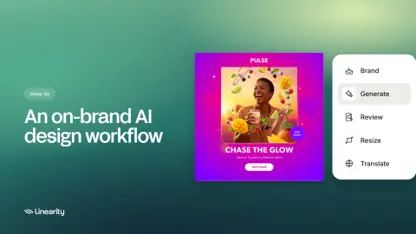
Marketing teams keep AI-generated designs on brand by setting up the brand once, before anyone writes a prompt, and generating every asset from that shared brand kit. The second half of the job is editability: when the AI returns a design file with live text, layers and vector shapes instead of a flat image, the team can correct, resize and translate the approved version rather than generating it again.
Here is that workflow in five steps, using Linearity as the example. Keeping the steps separate stops a campaign from drifting off brand one regeneration at a time.
- Set up the brand kit. Logo, colors, fonts and tone of voice, ready before the first design.
- Describe the campaign asset. Format, purpose and message in one clear request.
- Review and edit the design. Fix text, layers and vectors in the file instead of rerolling it.
- Adapt it for each channel. Resize and translate the approved file for every placement.
- Hand off the files. Keep approved work where the rest of the team can find and reuse it.
Step 1: Set up the brand kit
This is the foundation, not the design brief. Before you ask for a single post, the brand assets that every design should use need to be in one place: the logo, the color palette, the fonts and the way the brand speaks. If they live only in a PDF style guide, every generation is a new chance to get them wrong.
In Linearity, brand management starts from your company's website. Linearity builds a brand kit from it, with the logo, colors, fonts and tone of voice, and applies that kit to every design generated with the brand. Setting it up well takes a few checks:
- Start from the website. Give Linearity the site your customers know, so the kit reflects the brand as it appears today.
- Check the logo. Confirm the kit holds the logo version you want on marketing work. Every new design will carry it.
- Compare colors and fonts with your style guide. A website can use more colors than the brand allows, so keep only the ones you approve.
- Read the tone of voice. It guides the words in generated designs, so adjust it if it does not sound like your team.
- Add what the website does not show. Existing guidelines and approved assets can sit alongside the kit, so the AI works from the same context your team does.
- Share it with the team. A brand can be Private, Organization or Public. Set it to Organization and everyone in the organization can pick it when they prompt.
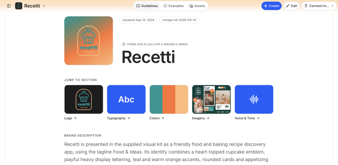
A brand kit with logo, colors, fonts and tone of voice, ready to apply to new designs.
Most design platforms now offer some form of brand kit, Canva and Adobe Express among them. The question to ask of any tool is whether the AI applies the kit while it generates, or whether someone has to apply it afterwards. In Linearity, the kit is part of the request, so nobody pastes a hex code into a prompt.
Step 2: Describe the campaign asset you need
This step produces a first draft, not a final approval. How good that draft is depends mostly on how clearly the request names the format and the campaign purpose. Linearity turns a text prompt into an editable design in your brand, and it makes social posts, ads, posters, slides, logos and App Store screenshots. Naming the one you need is the first line of a good request.
A useful request covers five things:
- The format: an Instagram post, a LinkedIn ad, a poster, a slide for the sales deck.
- The purpose: announce a launch, promote an event, drive sign-ups.
- The message: the headline, the offer and the call to action, in the words you want to see.
- The audience: who should stop scrolling, and what they already know about you.
- Anything fixed: a product name, a date, a legal line or an image that must appear.
For example: “A square Instagram post announcing our spring webinar for HR leaders. Headline: Hiring without the guesswork. Show the date and a Register now button.” With the brand selected, the logo, colors, fonts and tone come from the kit, so the prompt can stay about the campaign. For more examples by format, see the social media post generator and the poster maker.
In design communities, people keep asking for the same thing: AI output they can edit, that respects their brand identity from the start. The brand kit covers the second part. Step 3 covers the first.
Starting a design from Slack or an AI assistant
The web app runs in any browser at cloud.linearity.io, but the request does not have to start there. Connect one Slack workspace to your Linearity organization, and anyone can mention Linearity in a channel and get a layout, an image or a vector back, made with the shared brand.
Linearity also works inside Claude, ChatGPT, Cursor and Codex through its MCP server. Our guide to MCP for designers explains how that connection works.
For a startup or small business without a full-time designer, the brand kit carries decisions a designer would otherwise repeat in every file. Still have one person who owns the brand review the work.
Step 3: Review and edit the design
This is the refinement step, not a prompt for more generations. The output is a design file with layers, live text and vector shapes, not a flat image, and those editable parts are your review criteria. Go through them in order:

A generated design opens as layers, live text and vector shapes you can change one by one.
- Read every line of live text. Check spelling, names, dates, prices and claims. Because the text is live, a wrong word is a quick edit to that text layer, not a reason to regenerate.
- Check the hierarchy. The headline should read first and the call to action should be easy to find. Move or resize text layers until it does.
- Check the brand elements. Logo placement, colors and fonts should match the kit. If something is off, change that layer rather than the whole design.
- Adjust individual layers. Shift, scale, recolor or delete single elements. Everything else stays where you approved it.
- Refine vector artwork. Logos, icons and illustrations are generated as editable SVG vector paths, so you can change a shape or a color directly.
- Prepare the images. Remove a background, upscale a small photo, or use image to layers to split a flat image into separate editable layers.
A simple rule: generate again when the direction is wrong, and edit when the details are wrong. Community threads about on-brand AI tools make the same point: a typo baked into pixels means starting over, while in a layered file it takes a few keystrokes.
Why vector output matters for marketing collateral
Raster images are grids of pixels. Vector graphics are paths and shapes, so they scale from a social graphic to a poster without losing quality, and each part can be edited on its own. For logos, icons and illustrations that repeat across a campaign, vector is the safer format to approve.
Step 4: Adapt assets for each channel
This is campaign preparation, not a fresh design round. Once a design is approved, it becomes the master file, and every placement is adapted from it. Linearity can resize a design for other formats and translate it into other languages while keeping it editable, so each version keeps its live text, layers and vector elements.
- List every placement first. Feed post, story, ad sizes, slide, poster, store listing. Adapting is easier when you know the full set.
- Resize from the approved master. Start each format from the approved file, so the fixes from Step 3 carry over.
- Check each version on its own. A vertical story and a wide banner have different space. Look at line breaks, text size, the focal point and anything near the edges.
- Translate once the copy is final. Translated text is often longer or shorter, so check how it fits, and have someone who speaks the language read it.
- Export for the channel. Export each version for where it will run, then upload it through your scheduling tool or the platform. Direct publishing to social networks is coming soon.
Posters
A poster is often the largest format in a campaign. Vector shapes and live text keep it sharp at that size, and the headline can still be adjusted after you see a print proof.
App Store screenshots
Teams preparing a store listing usually want the shortest path from a raw app screenshot to a store-ready asset. Linearity makes App Store screenshots as editable designs, so the captions stay live text. That makes it practical to update a caption after a feature changes, or to translate the set for other markets without rebuilding each screen.
Step 5: Hand off the approved files
The last step is making sure the work does not get lost. In Linearity workspaces, every generated design lands in a project. Make a project per campaign, invite people by email, and everyone in it works on the same files. Today, people open and edit a file in turn rather than at the same time.
Projects are shared with Linearity Curve, the vector design app for Mac, iPad and iPhone, and Linearity Move, the animation app for Mac and iPad, so files made there appear in the same project.
Finally, feed approved work back into the brand system, so the next campaign starts from what already worked. For a broader view of where AI fits in design work, read our guide to AI tools for graphic design.
Frequently asked questions
How can marketing teams keep brand guidelines consistent when generating assets with AI?
Set up the brand once, before anyone prompts, and generate every asset from that shared brand kit. Then review and fix the result in an editable file instead of regenerating it, so approved details stay as they are.
Can I generate designs from Slack?
Yes. Once a Slack workspace is connected to your Linearity organization, anyone can mention Linearity in a channel and get a layout, an image or a vector back, made with the shared brand.
Are AI-generated designs in Linearity editable or flat images?
They are design files with layers, live text and vector shapes. You can change the wording, move or delete single elements and edit vector paths without generating the design again.
Why is vector output better for marketing collateral?
Vector artwork is made of paths rather than pixels, so it scales from a small social graphic to a large poster without losing quality. Logos, icons and illustrations can also be edited shape by shape.
Can I resize an approved design without starting over?
Yes. Linearity can resize a design for other formats and translate it into other languages while keeping it editable. Check each version for line breaks and focal points before export.
Does Linearity train its AI on my brand kit?
No. Linearity does not use customer files, brand kits or prompts to train its models. Data is hosted in the EU, and the company is SOC 2 Type I and GDPR compliant.
About the blog author
Nadya Kunze runs Customer Support at Linearity and has more than seven years of experience helping customers in SaaS. Outside work, she enjoys drawing, hiking, and baking, and she writes about Linearity, graphic design, and creative technology.


